
English
Training Session 2
The previous document introduced the Linux system and how to install it. Next comes what we should do once we have a Linux system in hand.
What to Do Right After Getting a System
root privileges
root is the super administrator and holds the highest privileges. Many operations depend on high privileges, so we have to switch to the root user. This involves knowledge of Linux users, groups and permissions, but since our training here is meant to get everyone up to speed quickly on maintaining Linux servers, I will not go into the reasons here.
When you first get the system, no root password has been set yet, so you cannot switch from an ordinary user to root. So we first have to raise the ordinary user's privileges (hereafter "privilege escalation"), and only after escalating can we change the password.
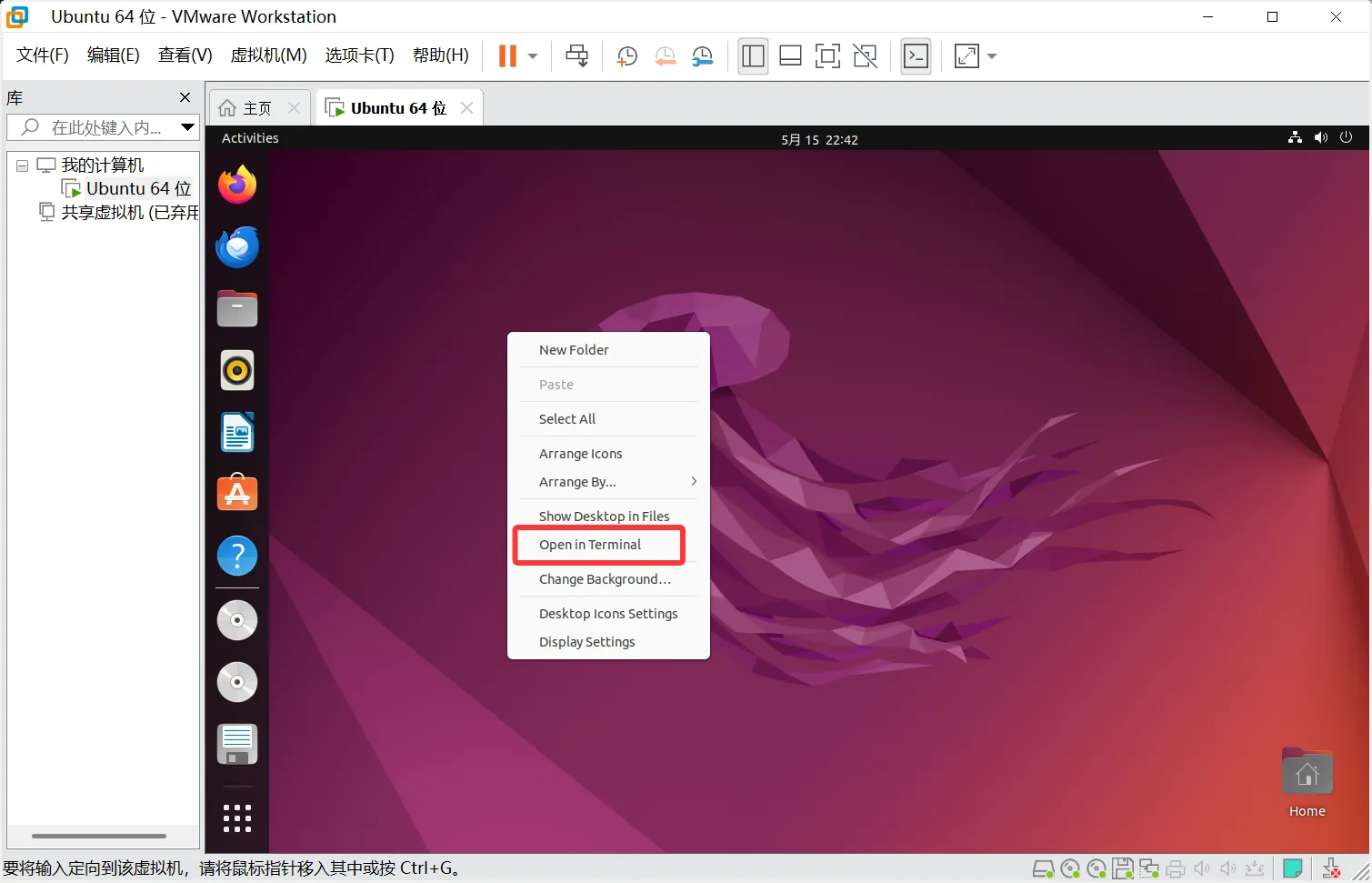
First open the terminal — terminal in English
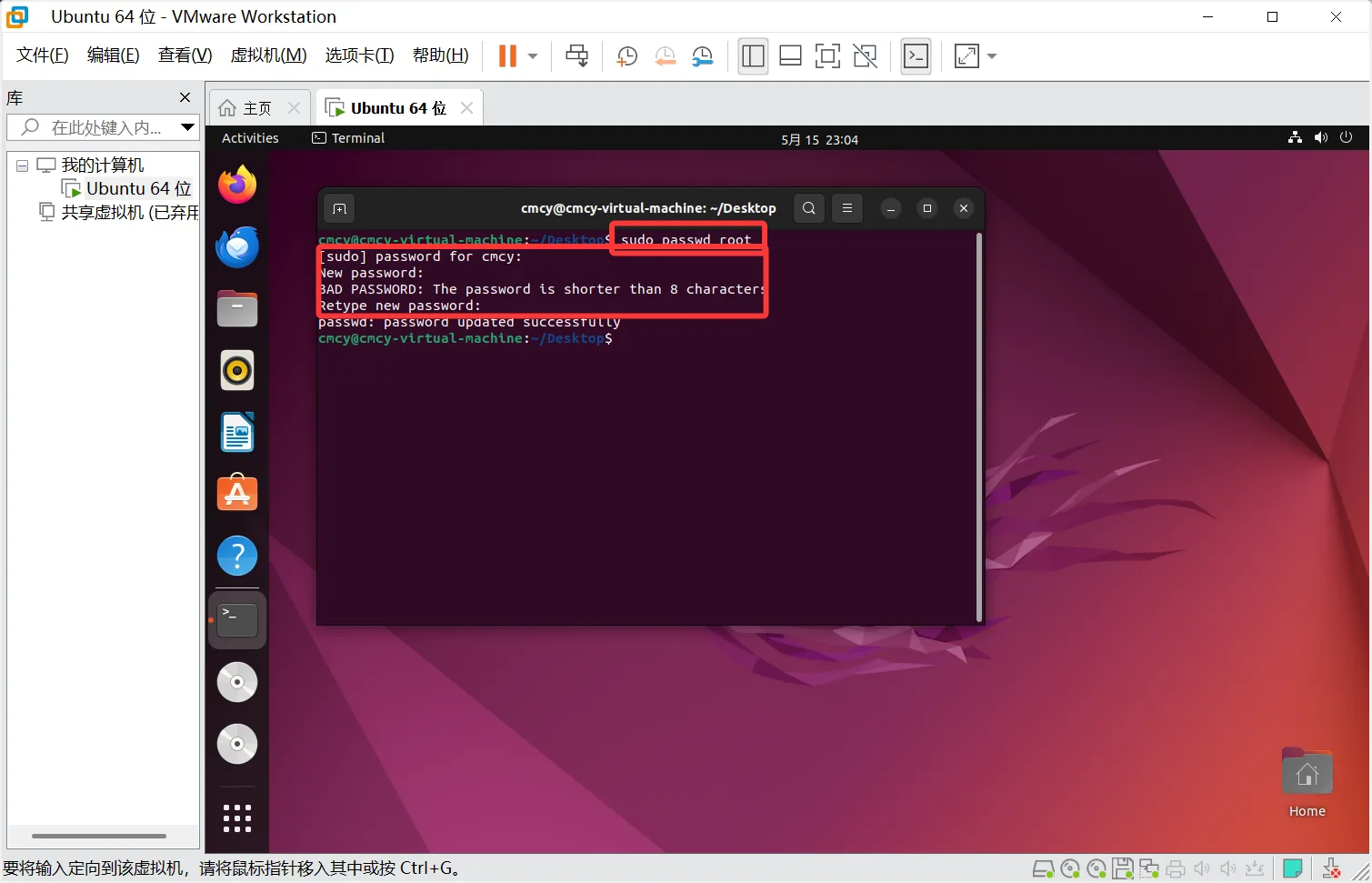
bash
sudo passwd root
#sudo 就是提升权限的前缀在这个命令之后会提示你输入用户的密码,然后输入你要给root设定的密码
#虽然提示了bad password但是不影响,你的密码想是啥就是啥,只需要二次确认即可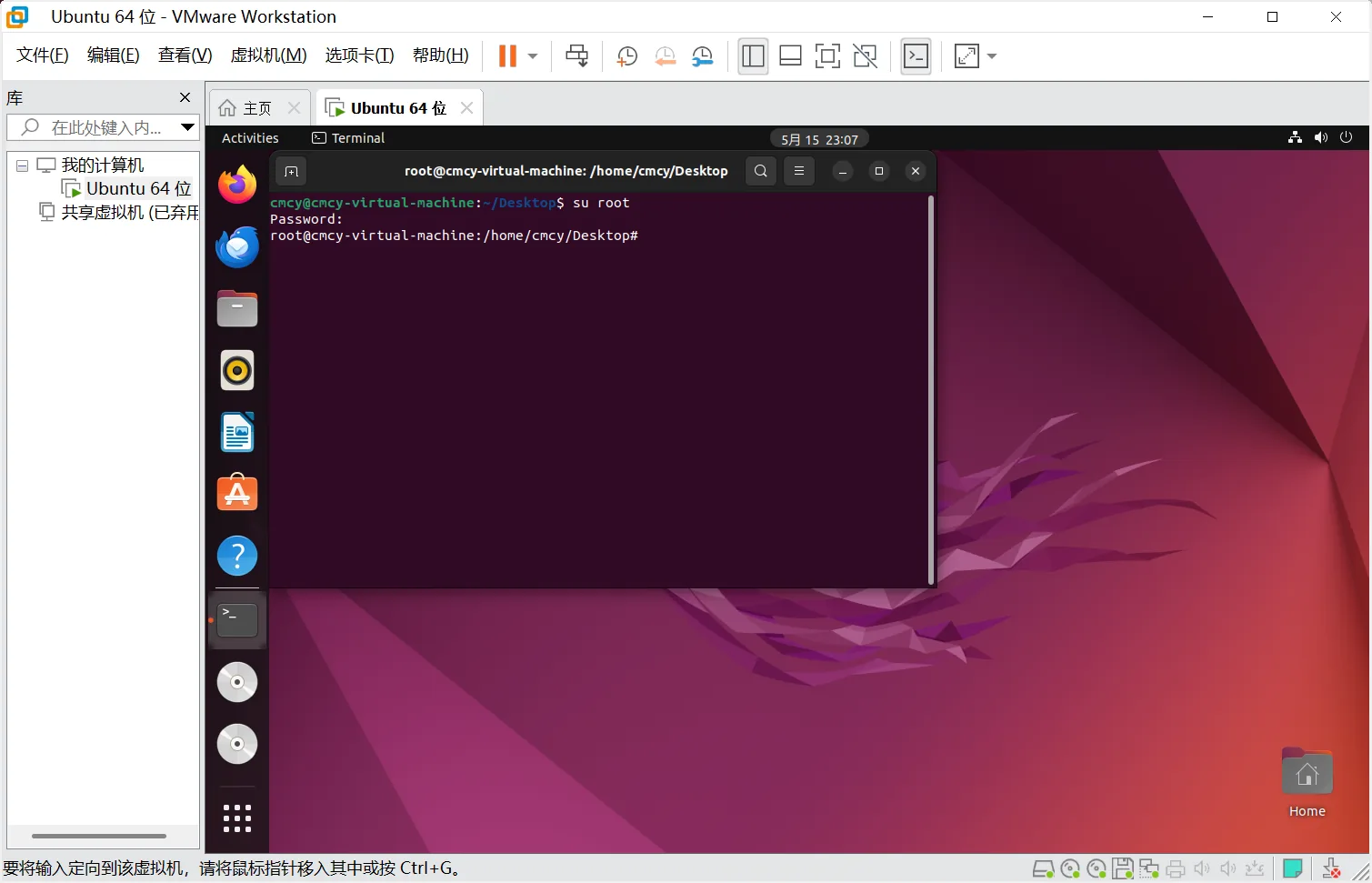
bash
su root
#su的作用是改变用户,su root就是切换root用户Switching package sources
Because we are in China, the system's default apt download sources are overseas ones, which makes downloading software with apt far too slow, so we have to switch to domestic mirror sources.
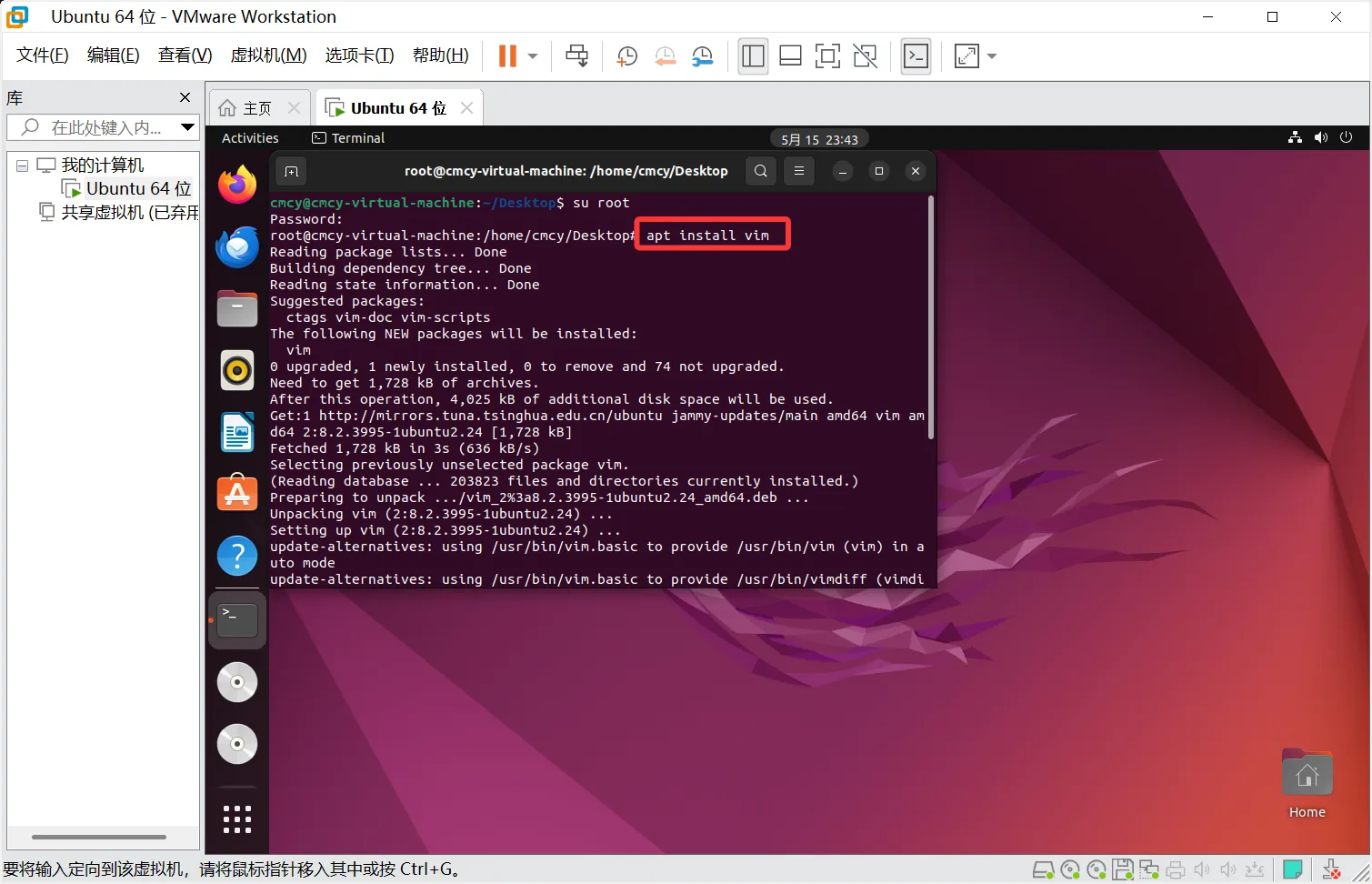
Then we need to install the text editor vim in order to modify the apt configuration file.
bash
apt install vim
#安装vim,如果在普通用户下需要sudo提权
#这里你们一路回车就装完了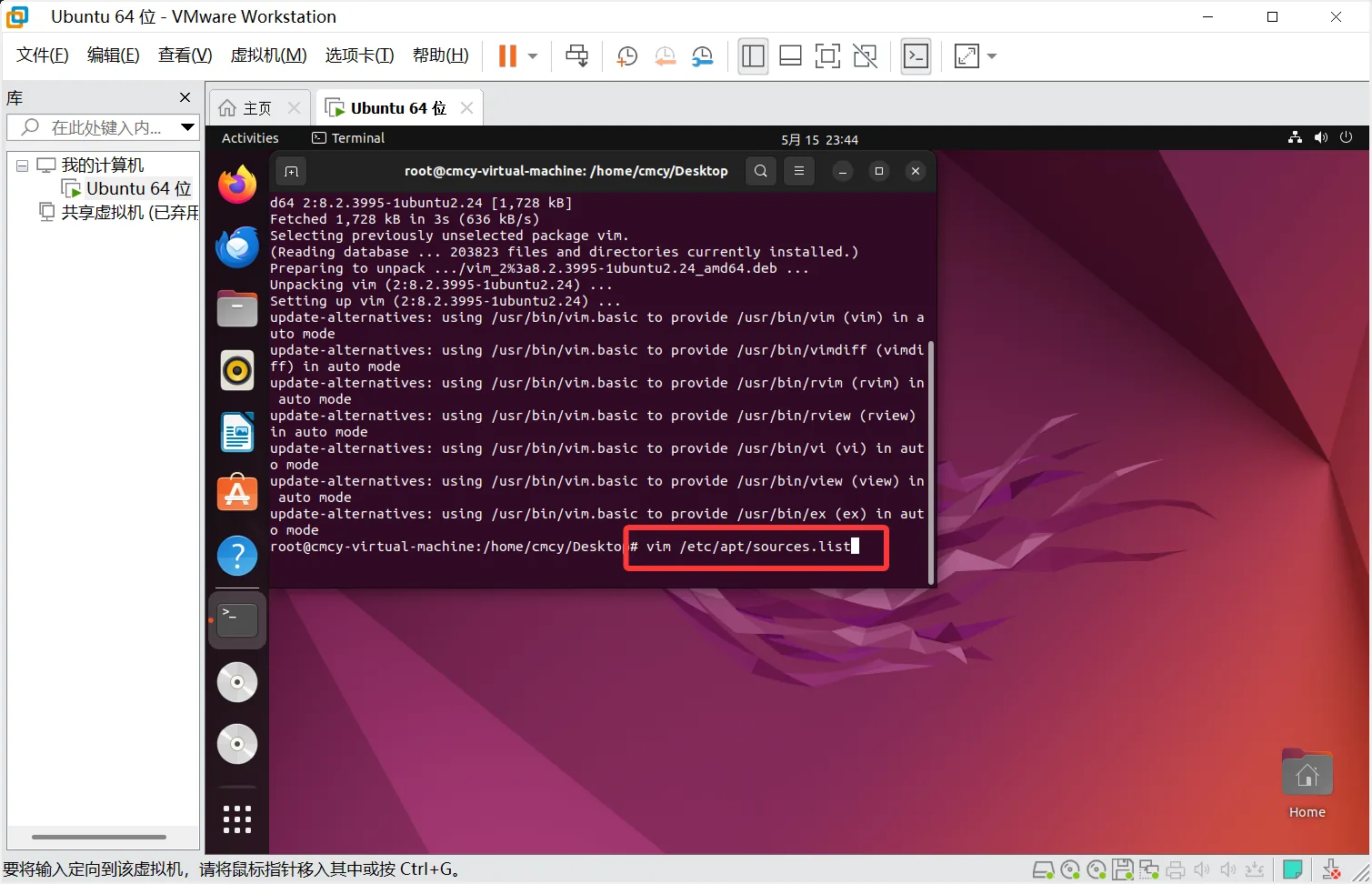
bash
vim /etc/apt/sources.list
#这一步就是为了编辑 apt 软件包的配置文件Then you will enter this editing interface. As for how to use vim, I will paste a link here for you to look at yourselves; I cannot explain it clearly in a couple of words. vim tutorial
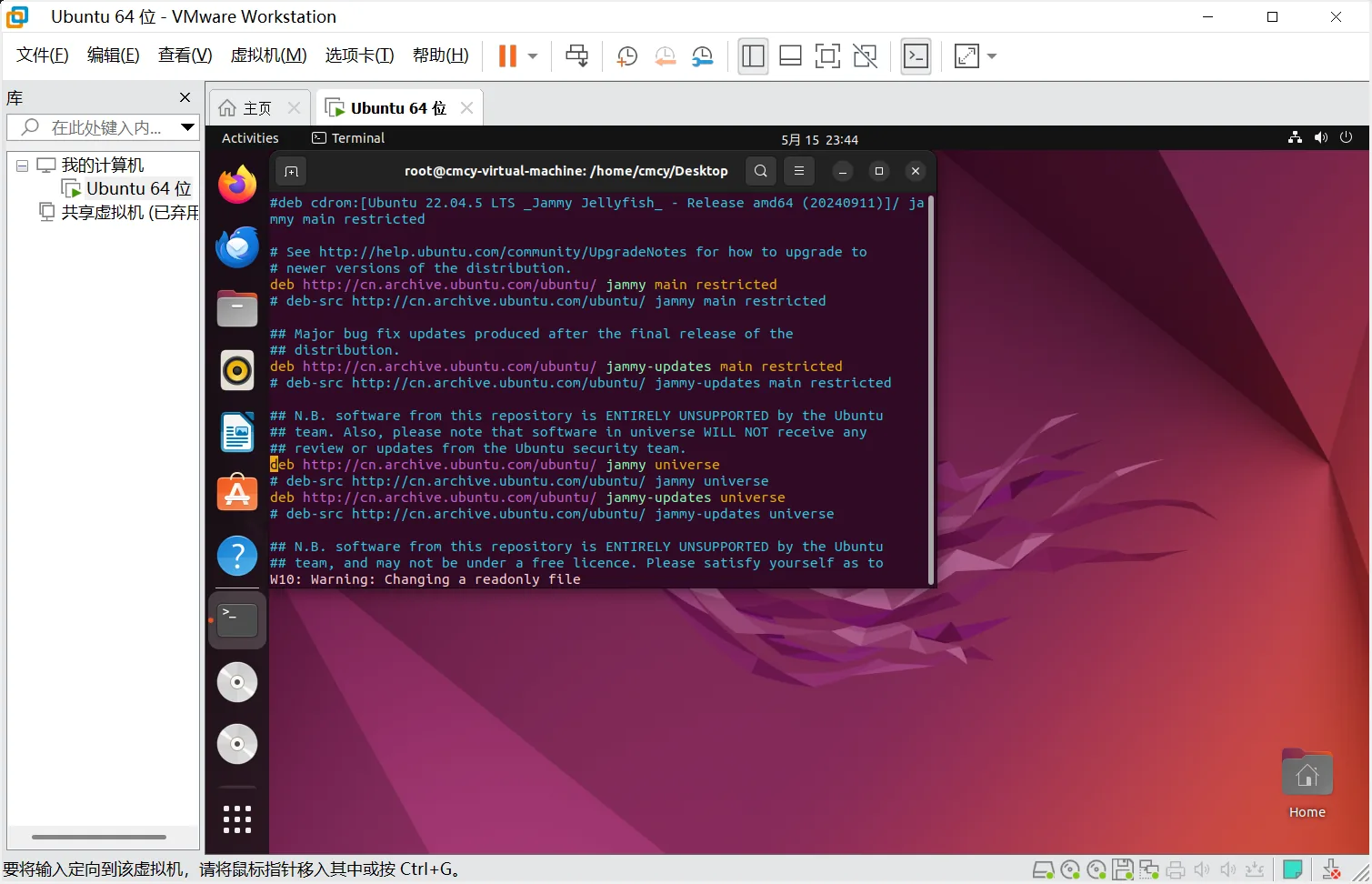
Then search online for "Ubuntu switch sources", pick any Aliyun or other mirror source at random and copy-paste it in. Here I will use the Tsinghua mirror
bash
# 默认注释了源码镜像以提高 apt update 速度,如有需要可自行取消注释
deb https://mirrors.tuna.tsinghua.edu.cn/ubuntu/ noble main restricted universe multiverse
# deb-src https://mirrors.tuna.tsinghua.edu.cn/ubuntu/ noble main restricted universe multiverse
deb https://mirrors.tuna.tsinghua.edu.cn/ubuntu/ noble-updates main restricted universe multiverse
# deb-src https://mirrors.tuna.tsinghua.edu.cn/ubuntu/ noble-updates main restricted universe multiverse
deb https://mirrors.tuna.tsinghua.edu.cn/ubuntu/ noble-backports main restricted universe multiverse
# deb-src https://mirrors.tuna.tsinghua.edu.cn/ubuntu/ noble-backports main restricted universe multiverse

# 以下安全更新软件源包含了官方源与镜像站配置,如有需要可自行修改注释切换
deb http://security.ubuntu.com/ubuntu/ noble-security main restricted universe multiverse
# deb-src http://security.ubuntu.com/ubuntu/ noble-security main restricted universe multiverse

# 预发布软件源,不建议启用
# deb https://mirrors.tuna.tsinghua.edu.cn/ubuntu/ noble-proposed main restricted universe multiverse
# # deb-src https://mirrors.tuna.tsinghua.edu.cn/ubuntu/ noble-proposed main restricted universe multiverseOnce the editing is done, update the sources
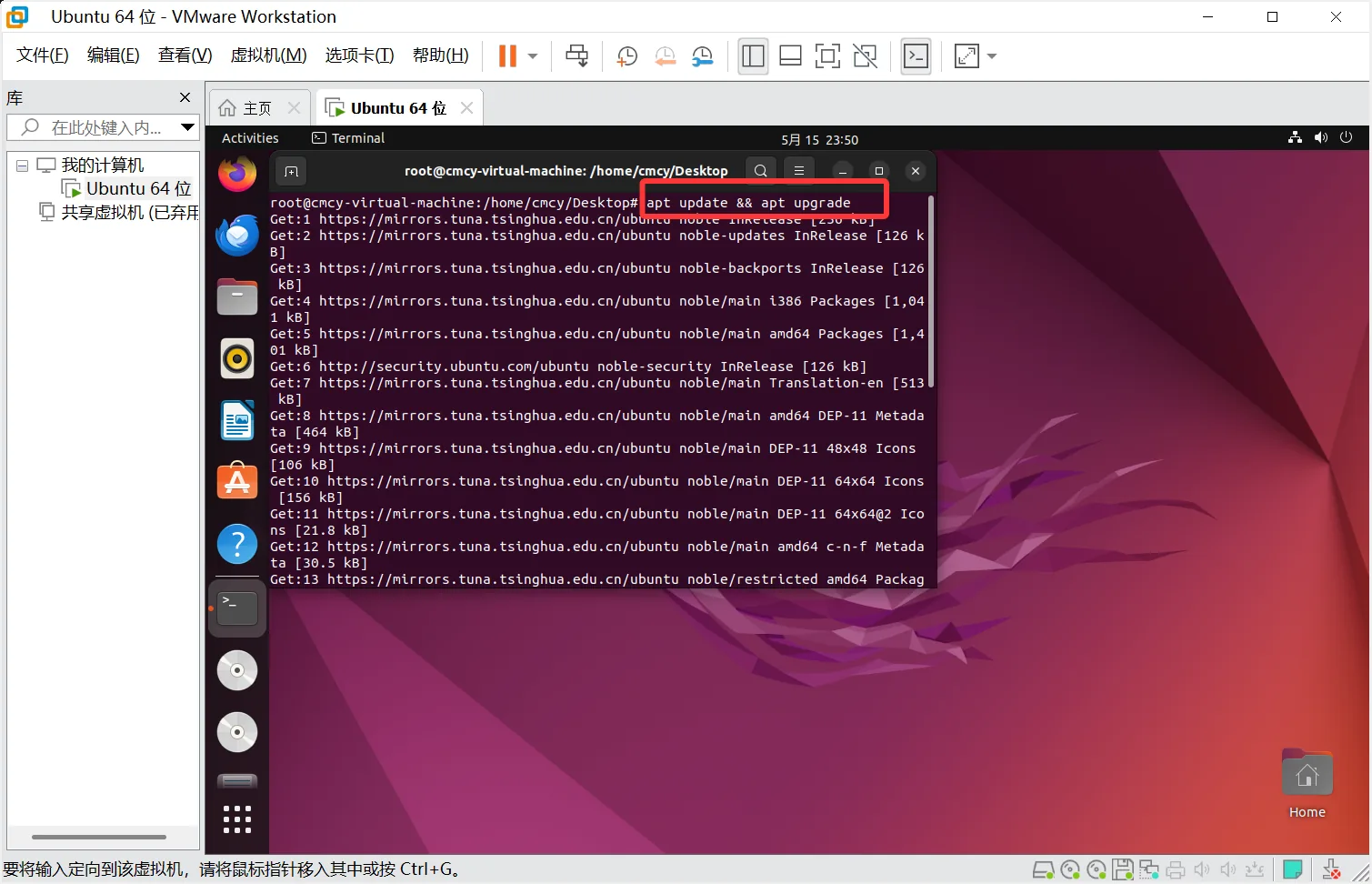
bash
apt update && apt upgrade
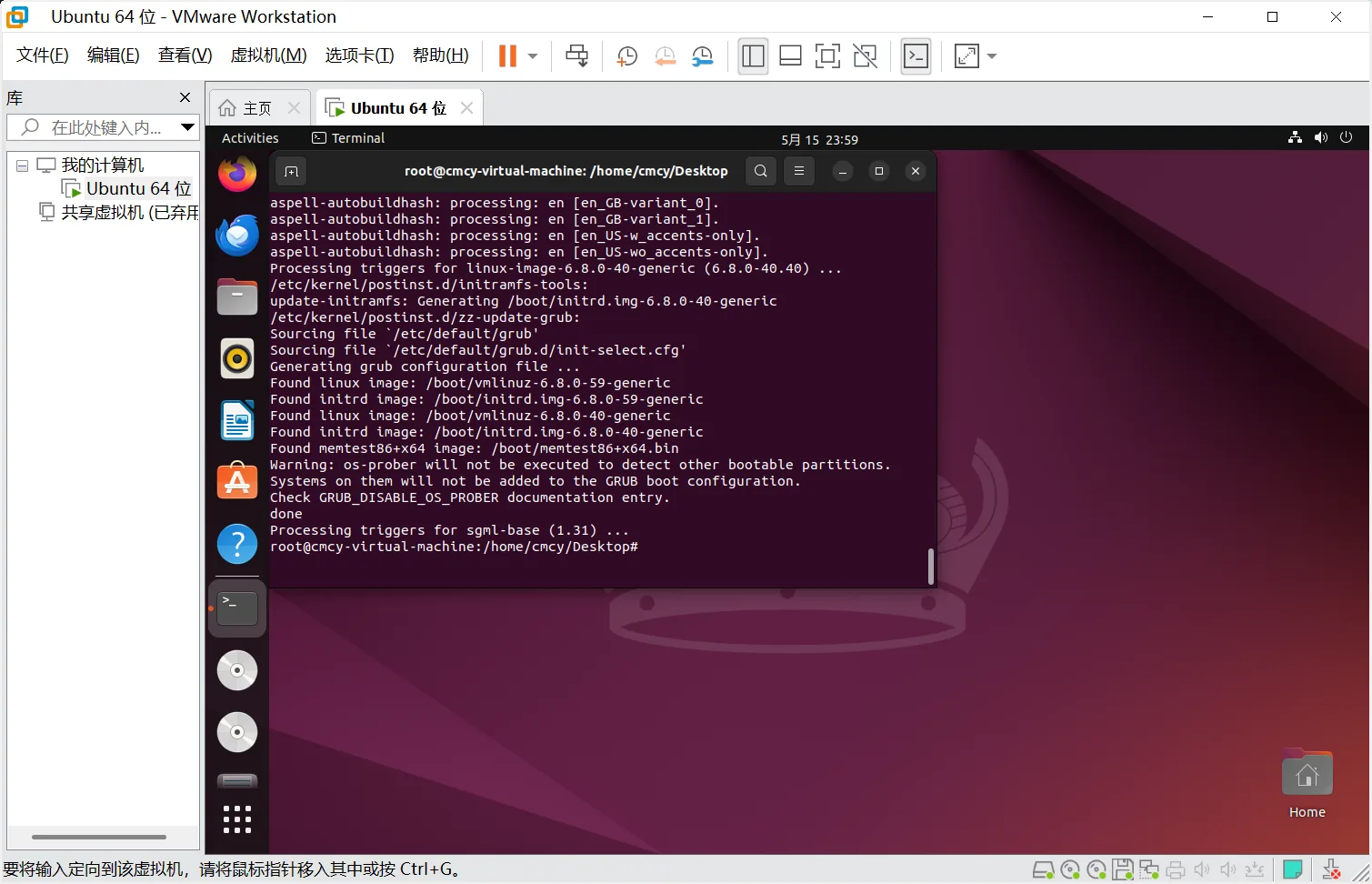
#&&是与的意思,在这里一路回车即可。等待更新完毕Wait for the update to finish and you are done
Installing Network Tools
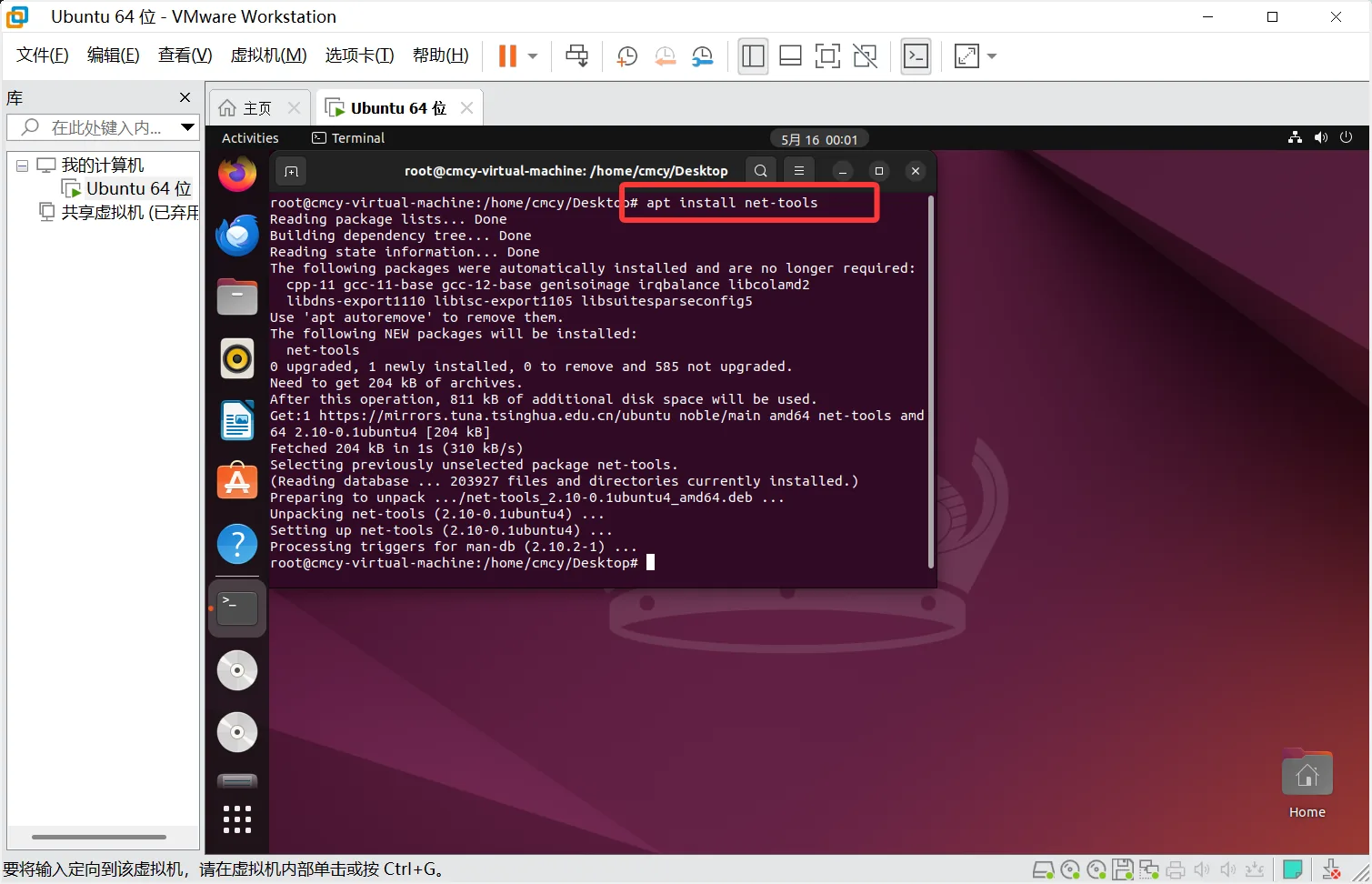
bash
apt install net-tools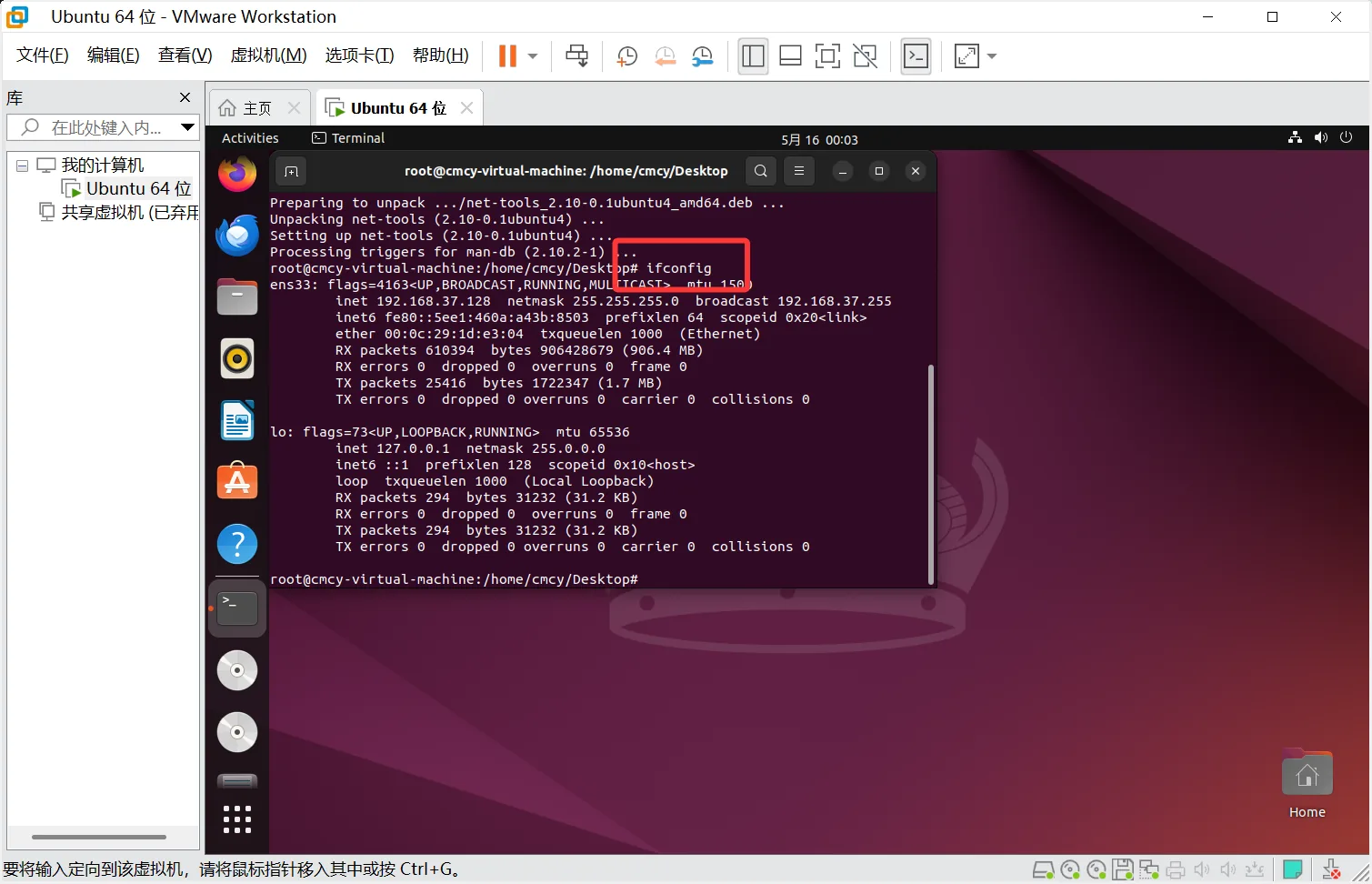
bash
ifconfigThen you can see that the virtual machine's IP address here is 192.168.37.128 — everyone's is different. Computer networks are fundamental too; if you do not understand, go watch the quick start. Computer networks quick start
Remote Connection
Most of the time servers are maintained through remote connections over the command line, so you absolutely must learn remote control. Remote connections are usually SSH connections; for the remote shell here we will use the free Xshell. Free for Home/School - NetSarang Website
No need to say much about installing it; just do not install it on the C drive
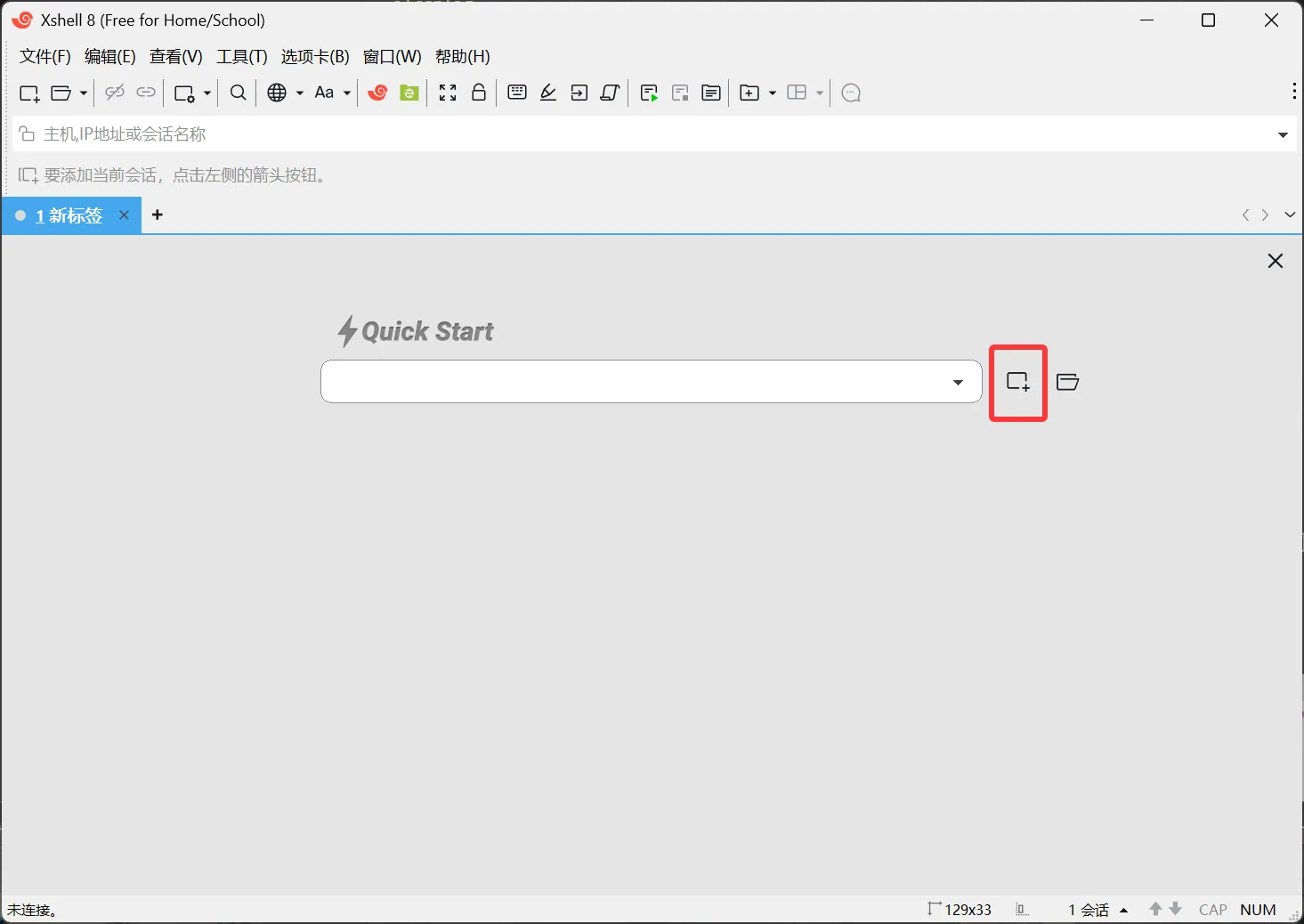
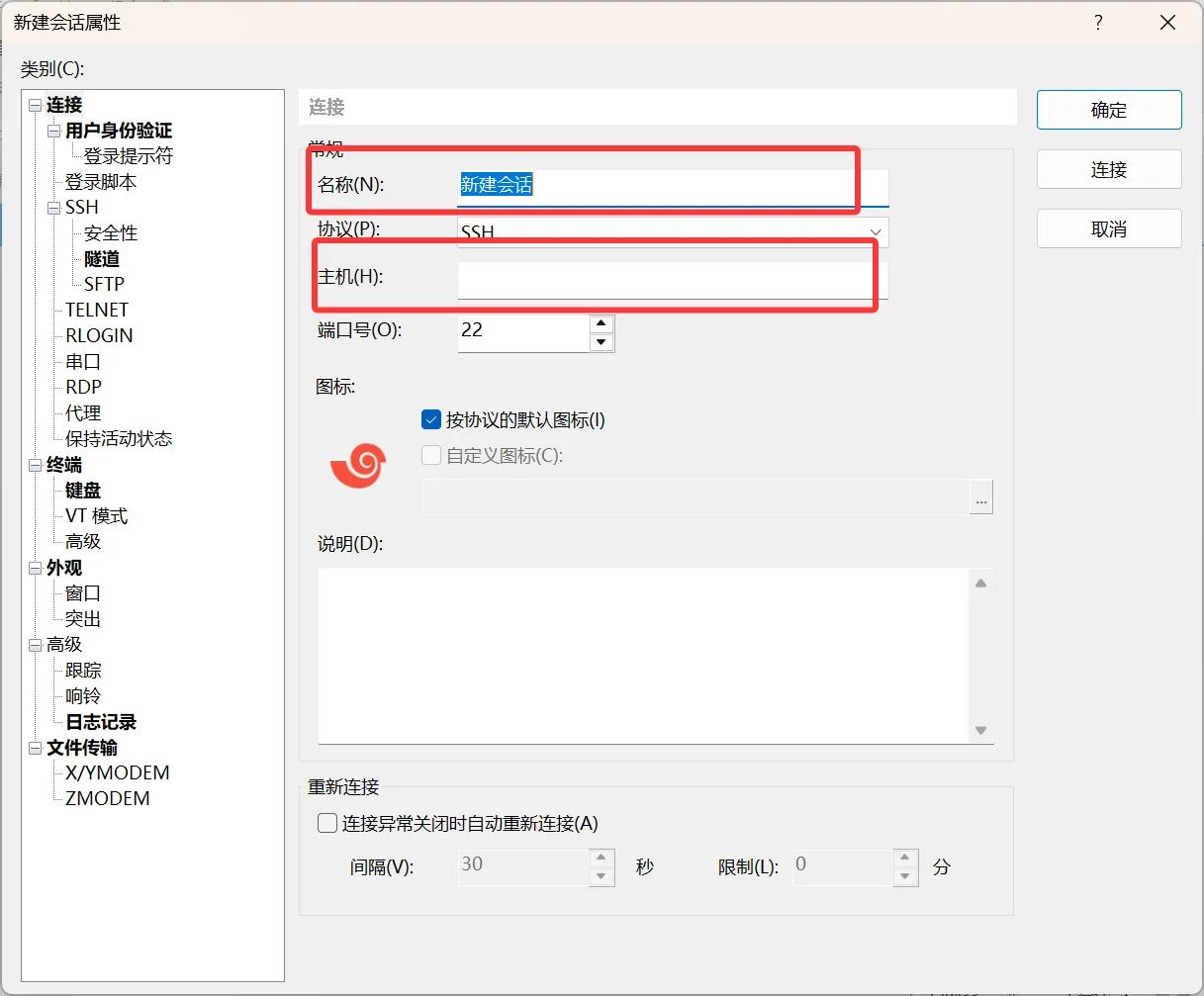
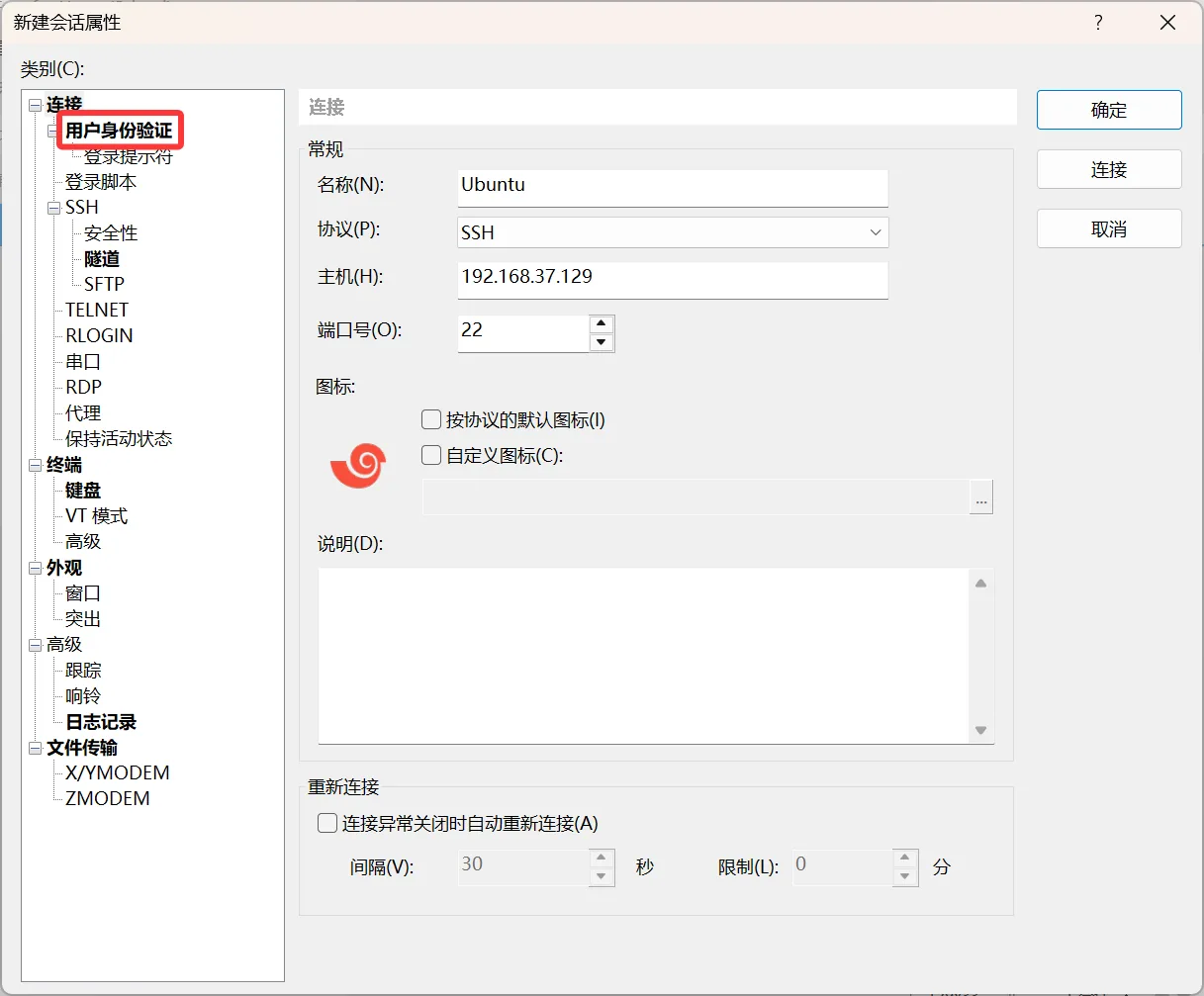
The name here can be anything; the host has to be the virtual machine's IP address. Mine here is 192.168.37.129
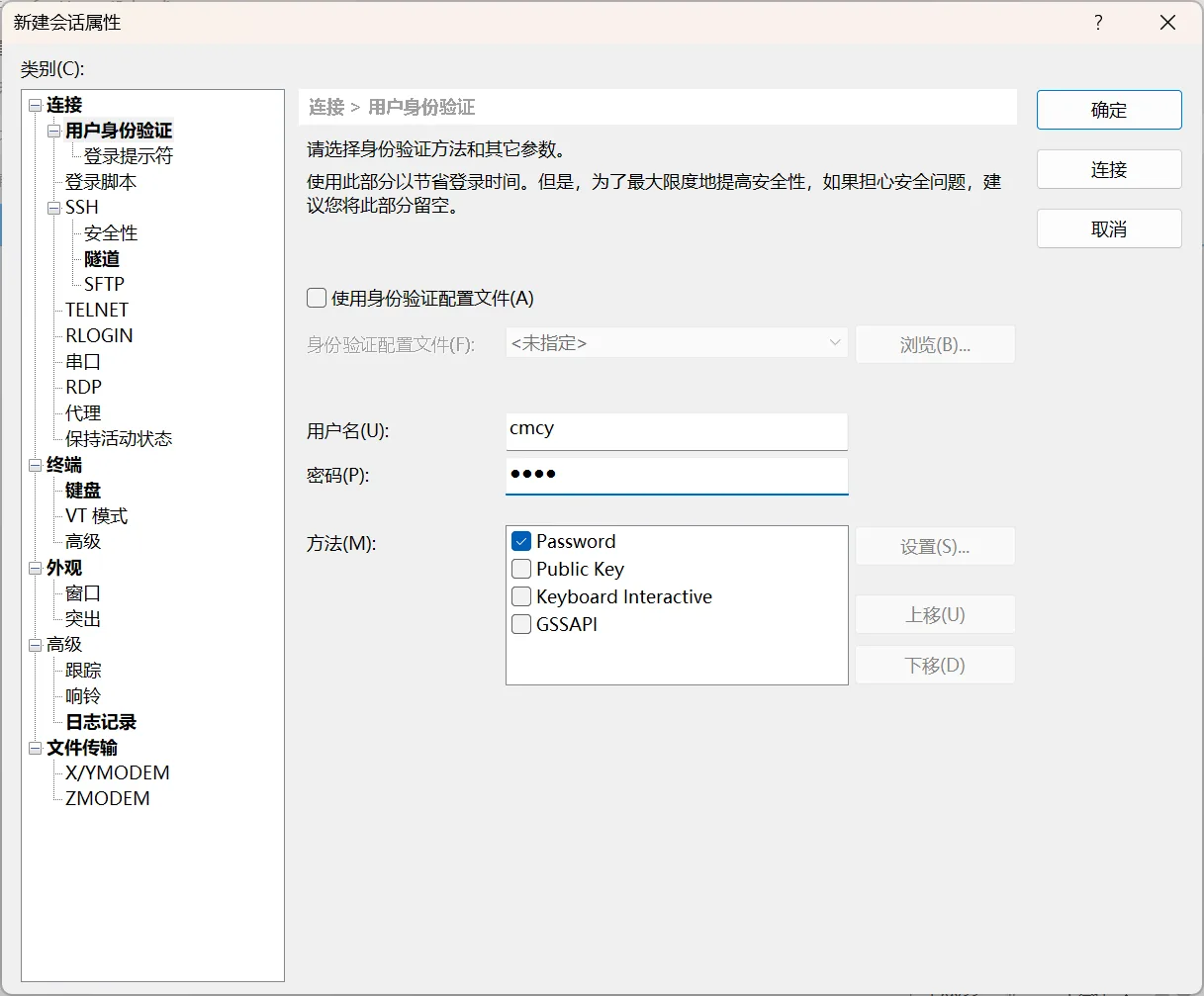
After entering the username and password, just click connect. Note that I do not recommend using root for remote control — one reason is security, the other is that you would need to modify configuration files
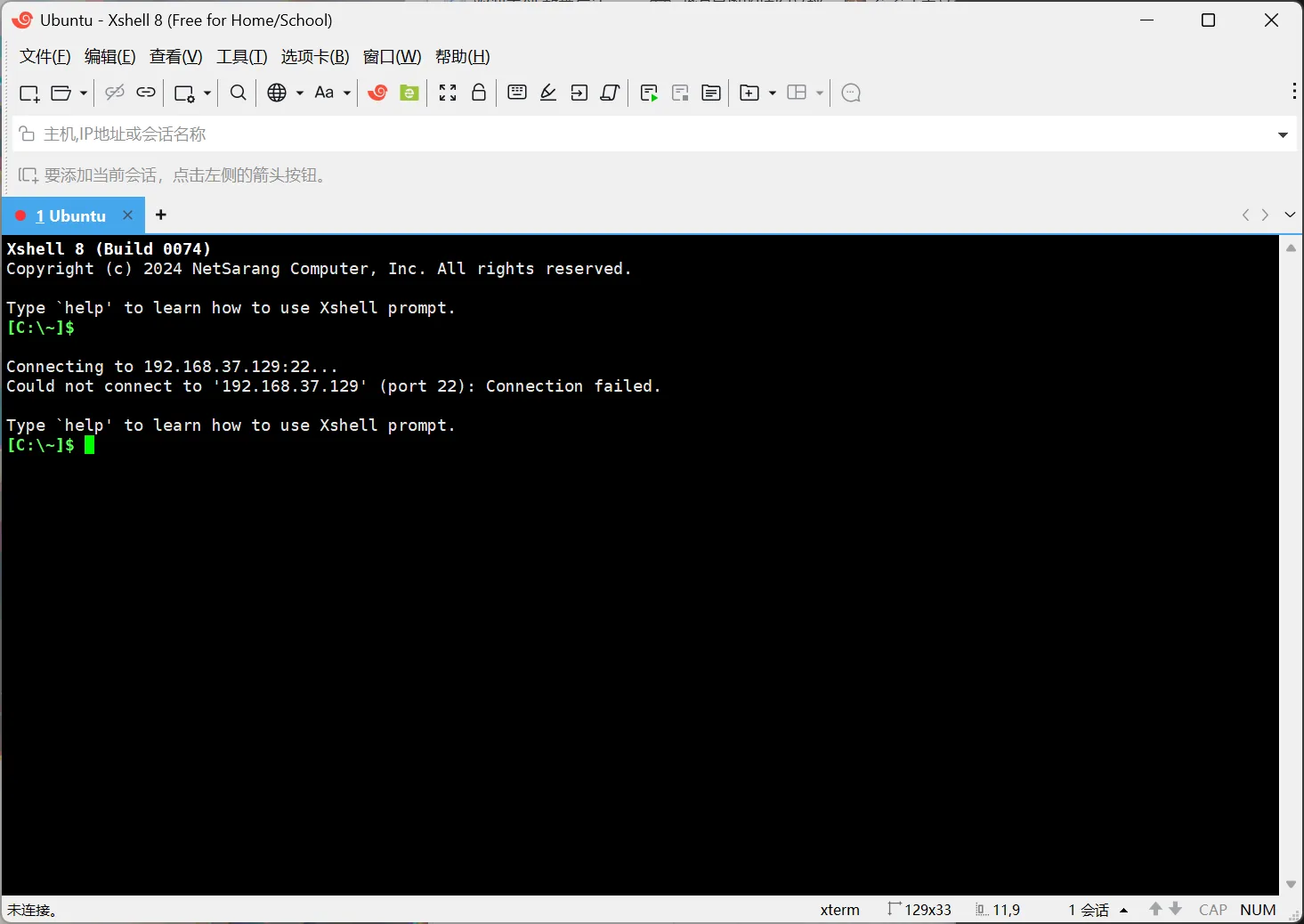
Here we find the connection fails. Actually that is because the SSH service is not installed on Ubuntu, so we only need to enter the following two commands
bash
sudo apt install openssh-server
sudo systemctl status ssh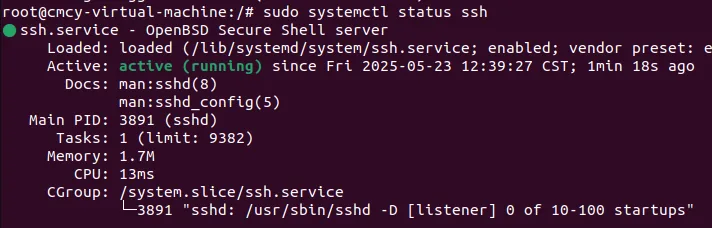
Seeing this proves it is working, then go back to Xshell on Windows and connect once more
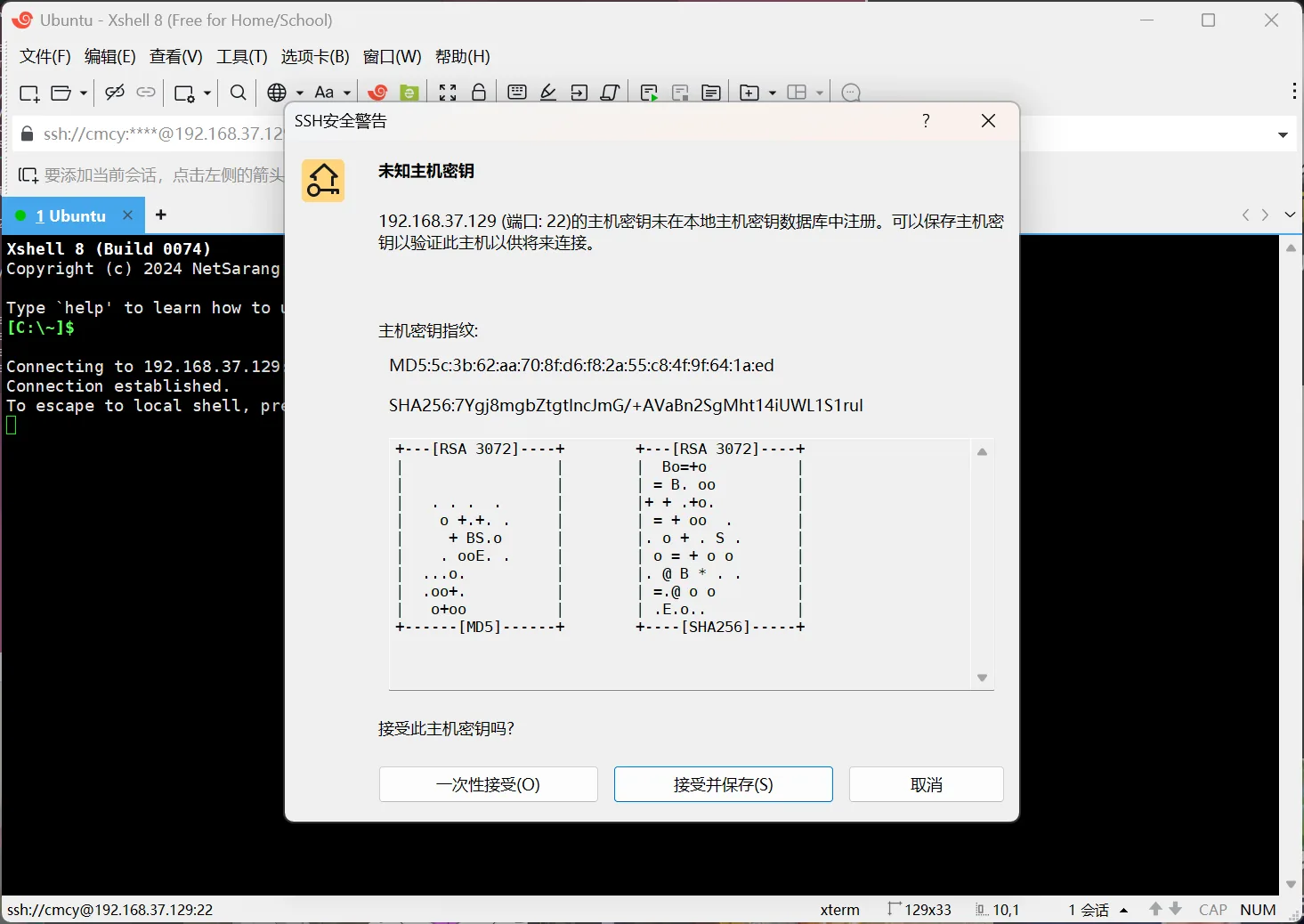
Click accept and save
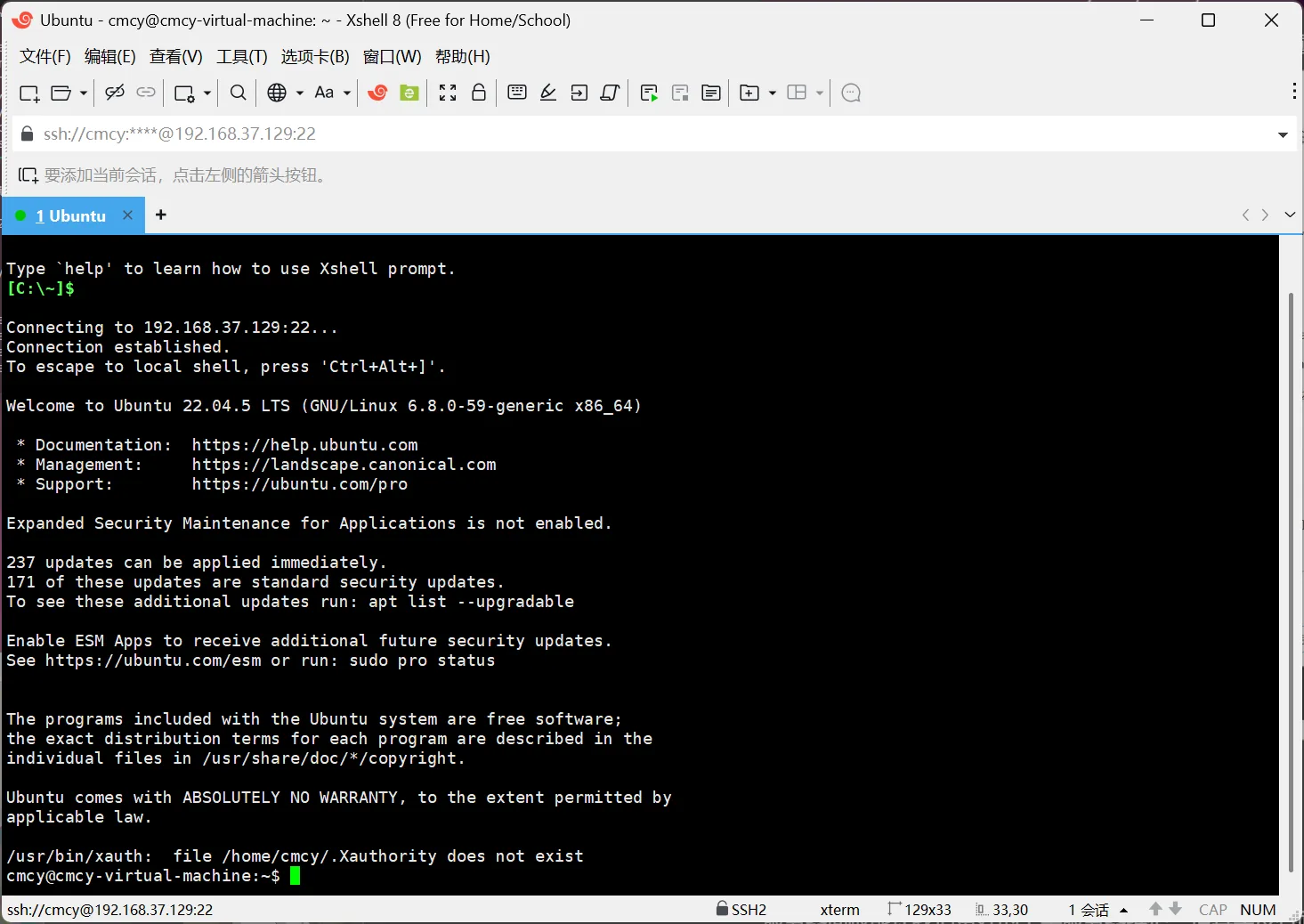
Now you can see the remote connection has succeeded, and from there you can control your server however you like
Installing a Panel
A server panel lets us get the hang of server maintenance more easily. Actually it works just fine without a panel too, but we need to get everyone up to speed quickly, so let us start from a panel.
There are plenty of server panel products on the market, such as Baota, 1panel, Xiaopi panel and so on, but they are basically the same medicine in a different bottle. The panel our base's server uses is 1panel, so here we will choose to install the 1panel panel as well, like this:
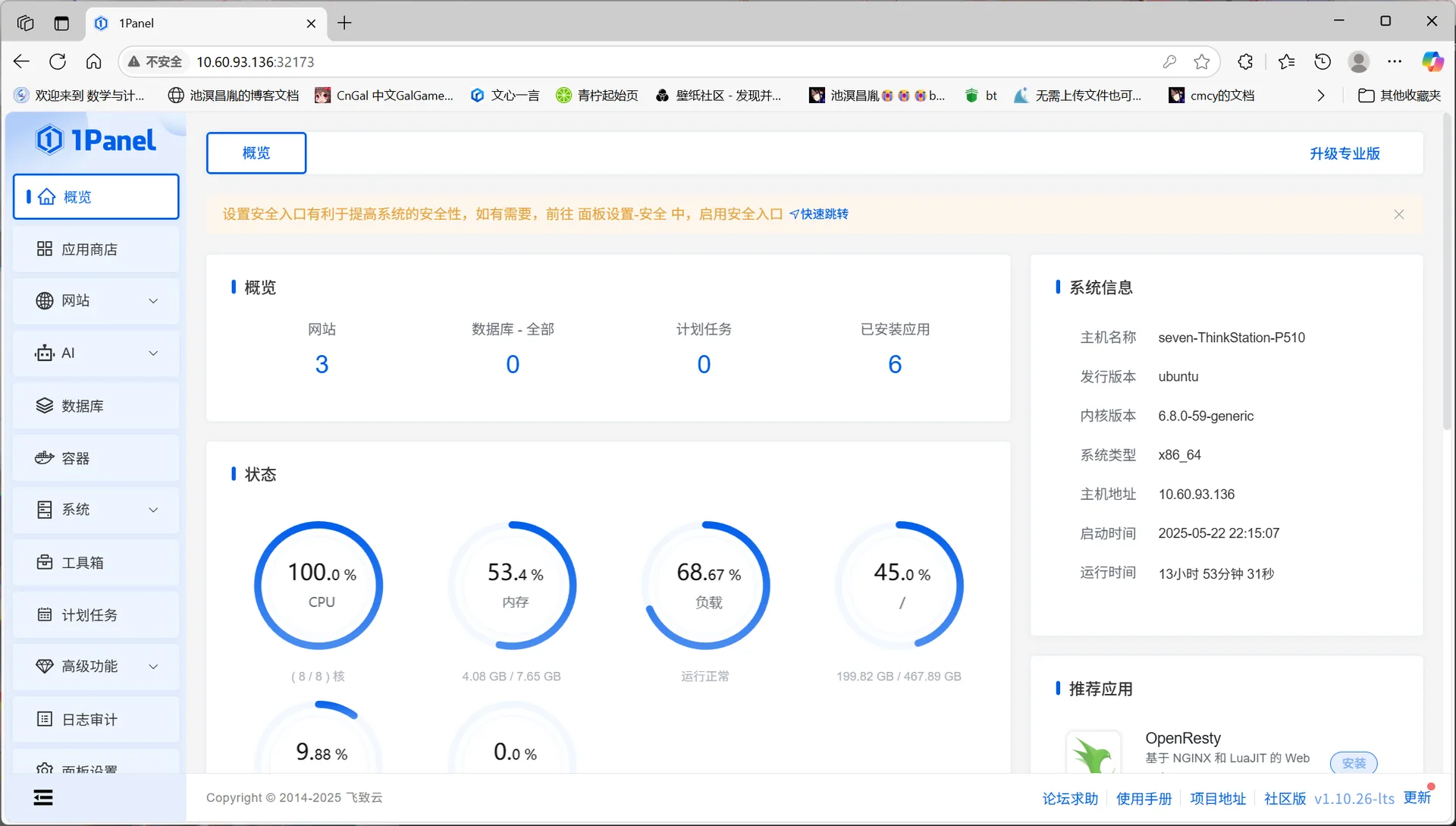
One important thing to mention here is that you have to learn to read the official documentation. Here the installation follows 1panel's official documentation
https://1panel.cn/docs/installation/online_installation/
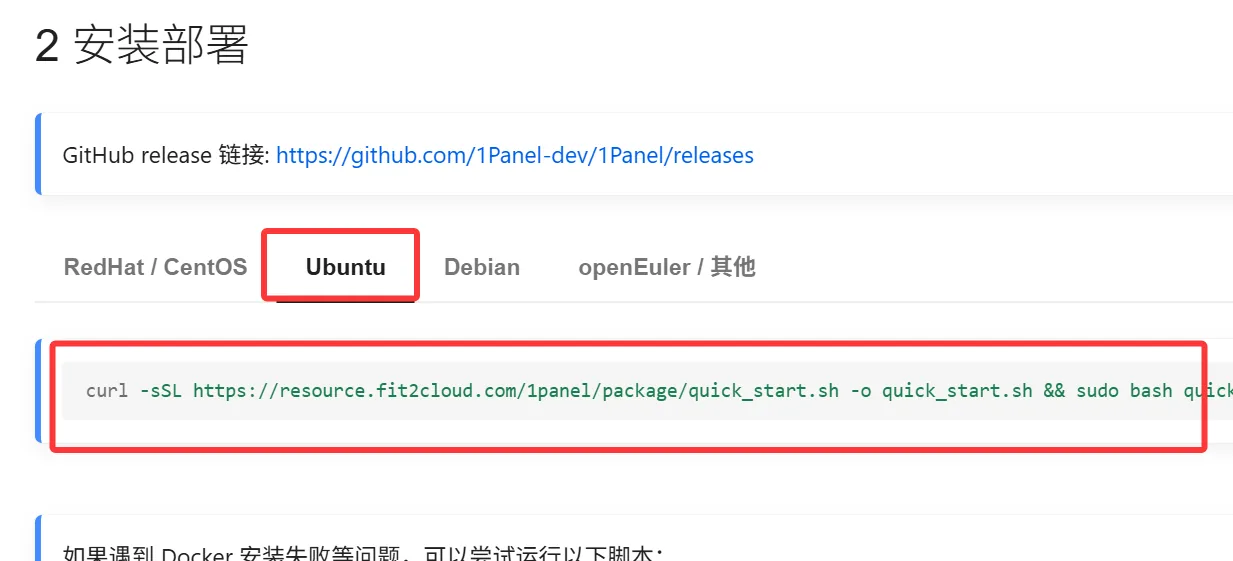
Just copy and paste it into Xshell

If it says curl is not available here, then install curl, and after that run the script you copy-pasted above
Then you will be taken into some choices
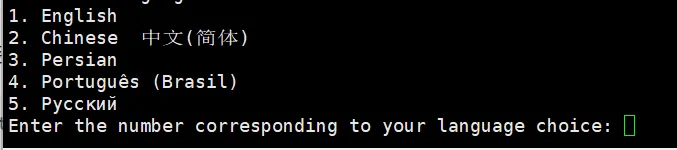
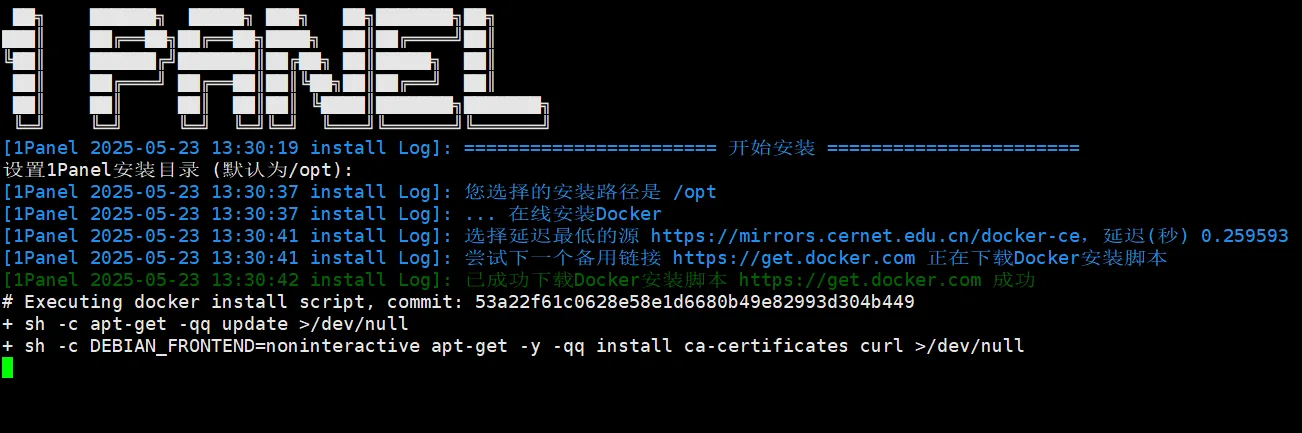
For the installation directory just press space, then wait quietly for Docker to be installed
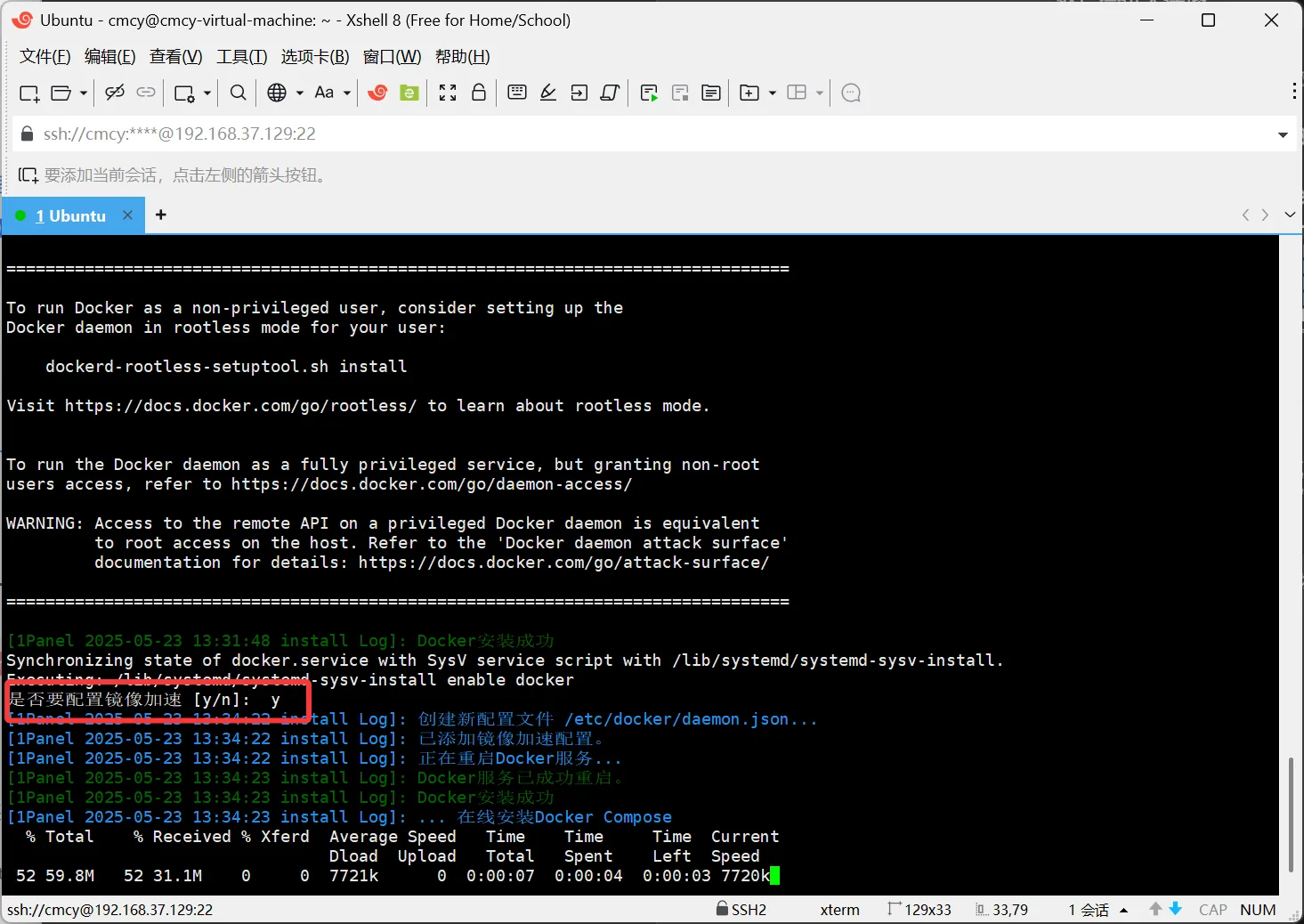
Choose y here
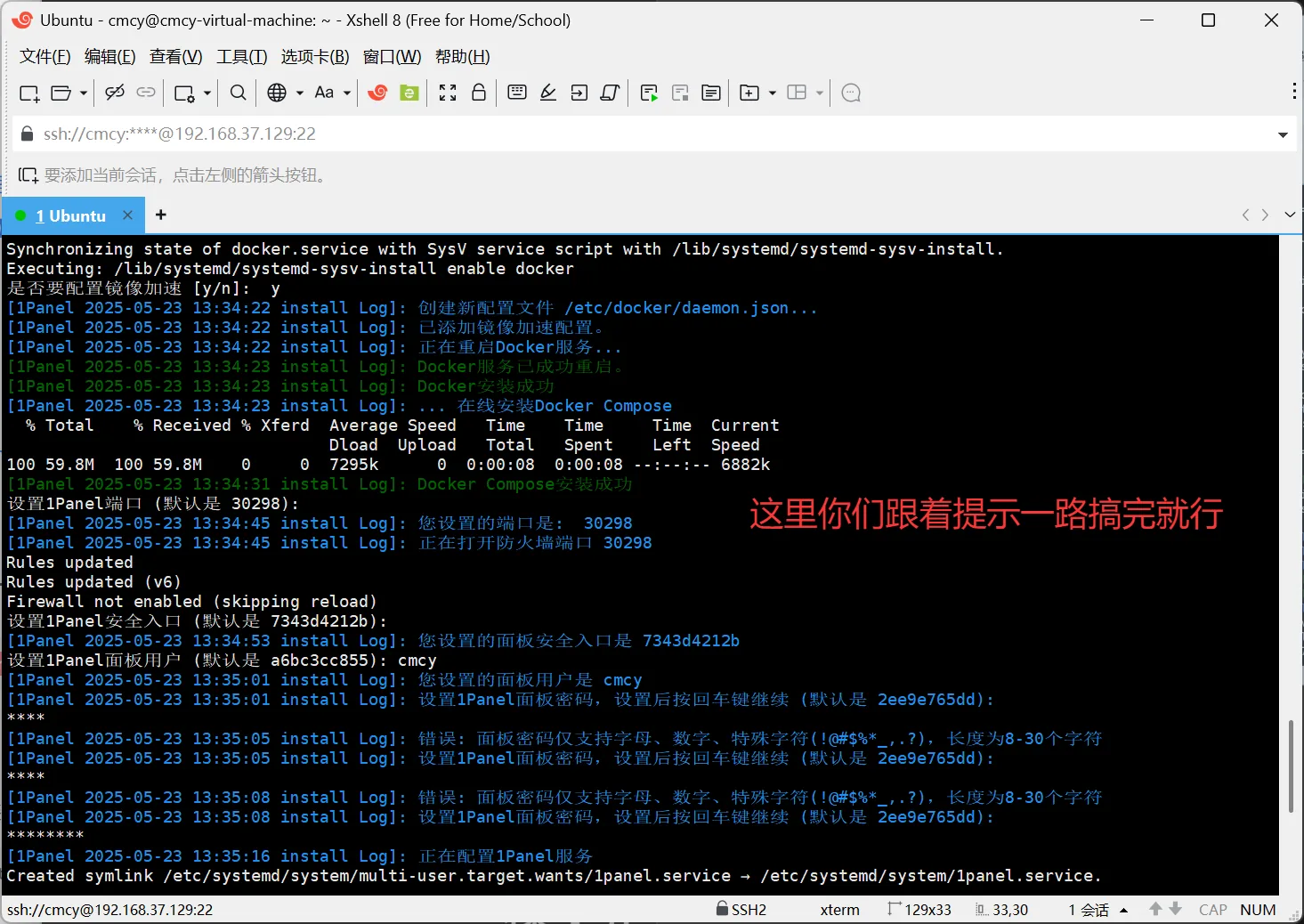
Finally you will see
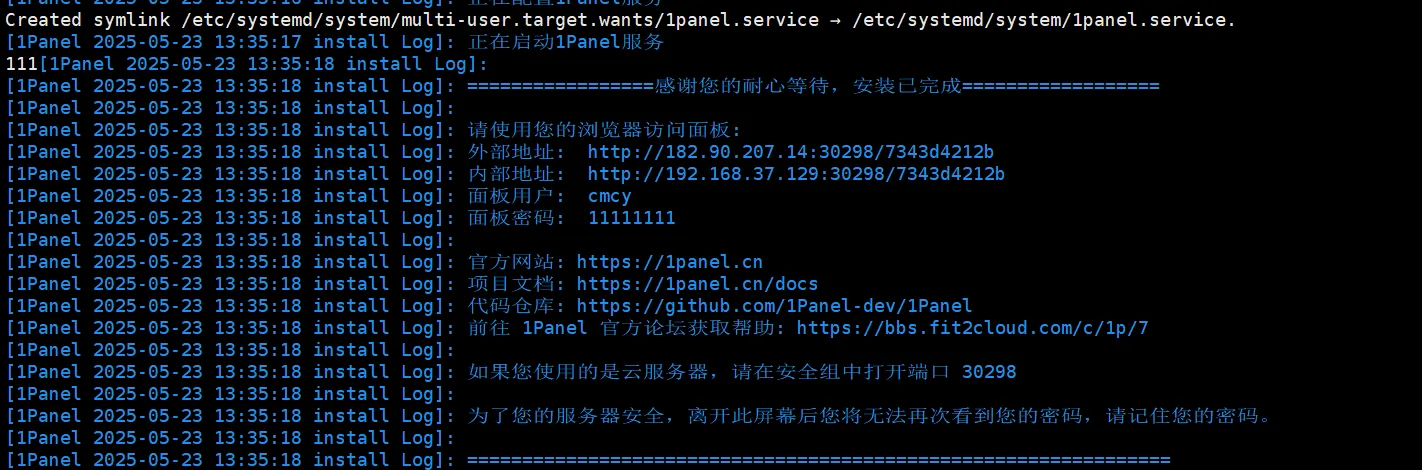
Then enter the internal address in a Windows browser, enter the username and password, and you can log in to the panel
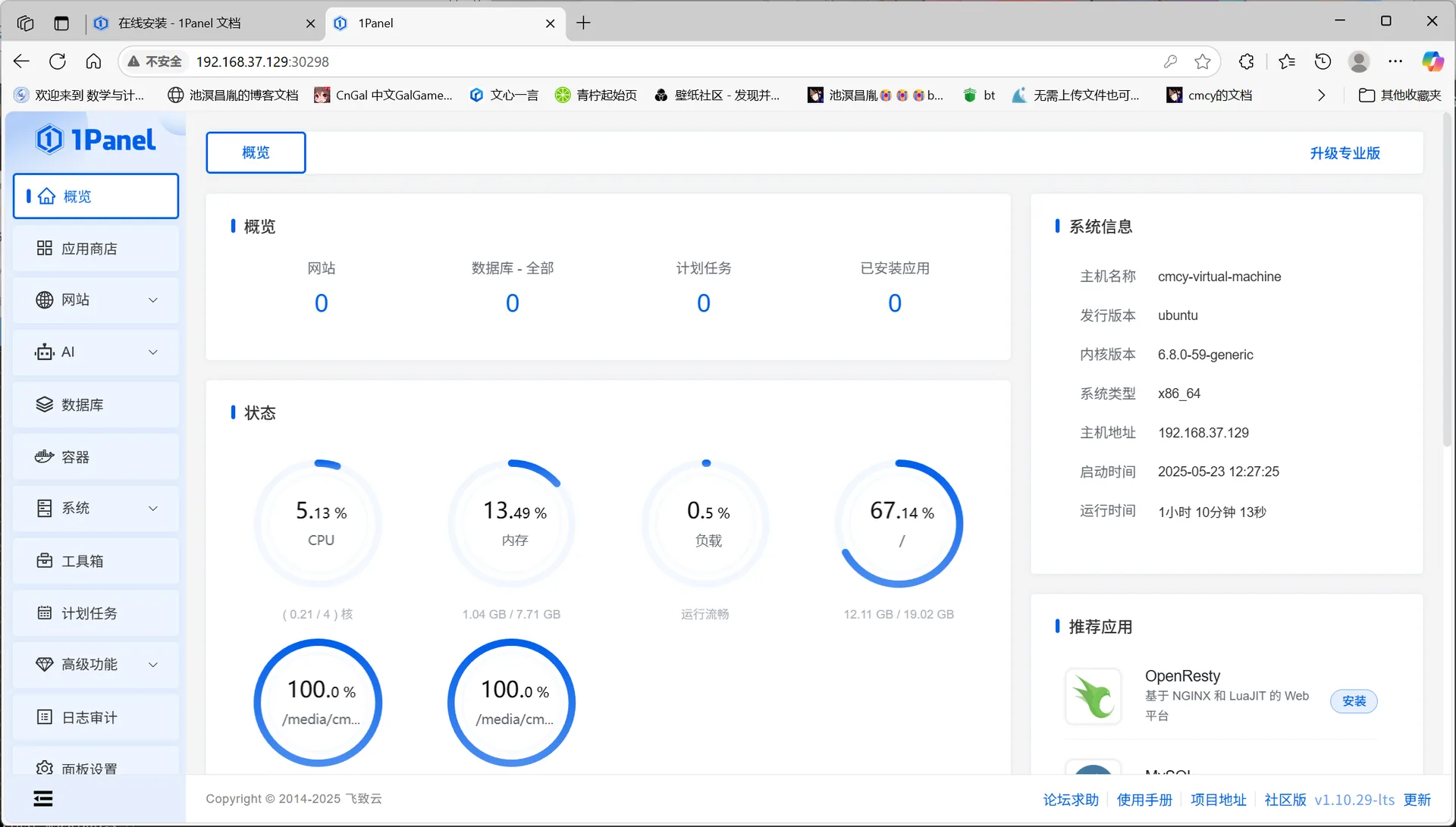
And then you can operate your server visually from there