
English
Training Session 1
Linux Distributions
How Operating Systems Evolved
- Unix (born in 1969 at Bell Labs) [Ken Thompson]
- 1970, the first year of Unix
- Apple's system, 1984
- Windows, 1985
- Linux, 1991, Linus Torvalds, Linux kernel 1.0/GPL [it can be compatible with Unix software]
- UOS is based on Linux
- Linux is called Unix-like (open source, follows open-source licenses)
- Red Hat: redhat, fedora; centos removed Red Hat's store software and switched to open-source software instead — the most stable enterprise server operating system, CentOS 7, CentOS 8
- debian, ubuntu, kali
Recently Huawei has also come out with a HarmonyOS PC. If you are interested you can look into it; it has stirred up quite heated discussion online now.
The Father of Linux — Linus
Linus Torvalds is the father of Linux. In 1991, while studying at the University of Helsinki, Linus Torvalds wrote a computer operating system himself, named it Linux, and made the source code public. His original intention was to develop an operating system that anyone could use, and he was willing to accept the corrections, additions and enhancements that others provided on the premise that it was free and open. With the help of the Internet, Linux's developer community and user base grew rapidly, and it evolved from a developer's toolbox into an operating system able to hold its own against Microsoft Windows and Unix. Today Linux has become a platform with powerful appeal. Linus Torvalds started programming at the age of ten. His grandfather brought home a Commodore machine, and Linus immediately began using it to write his own computer games. When he bought his first PC, he felt DOS was not as easy to use as the Unix system in the school lab, but he was frustrated that there was no version of Unix that ran on microcomputers (too expensive!). So he decided to write his own operating system.
If you are interested, you can search for Linus's story on Bilibili.
Common Distributions
The following are common Linux distributions on the market
- Fedora
- Linux Mint
- SteamOS
- Ubuntu
- Arch Linux
- TuxedoOS
- Debian
- OpenSUSE Tumbleweed
- nobaraOS
- MX Linux
- Elementary OS
- NixOS
- KDE Neon
- Pop!_OS
- OpenSUSE Leap
- Gentoo
- Manjaro Linux
- Vanilla OS
- Zorin OS
- Solus
- Deepin
- HoloISO
In fact there are many, many more
Installing Linux
For beginners I think you should not go in for all that fancy stuff. If you are interested in hacker techniques you can go straight to installing Kali; otherwise just use Ubuntu obediently. I first got started with a CentOS 7 that had no GUI (graphical user interface), mainly to get familiar with the general operations of Linux systems, so that once you can use one, you can use them all. Another thing to note is Arch; classmates who like a challenge can go and install Arch.
Ubuntu now has a 24 long-term support release, but for the sake of stability here I am still using Ubuntu 22. I have put the installer package on the base's server
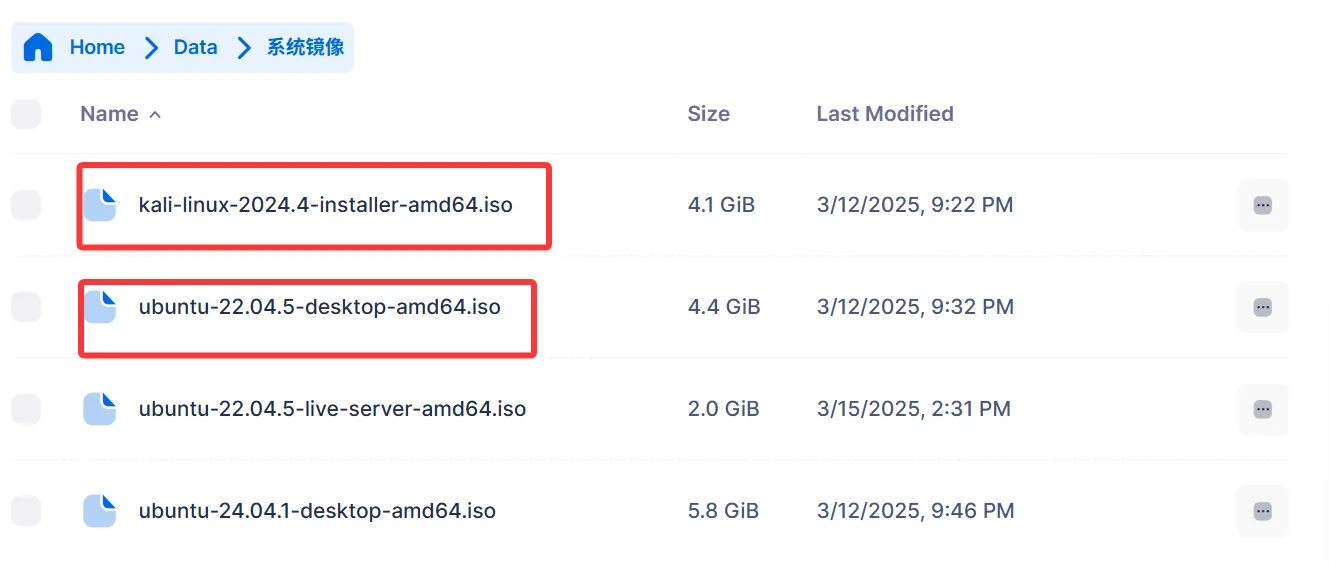
And while I am at it, let me mention that I have put quite a lot of development software on the base server, and of course the MATLAB you sophomores use
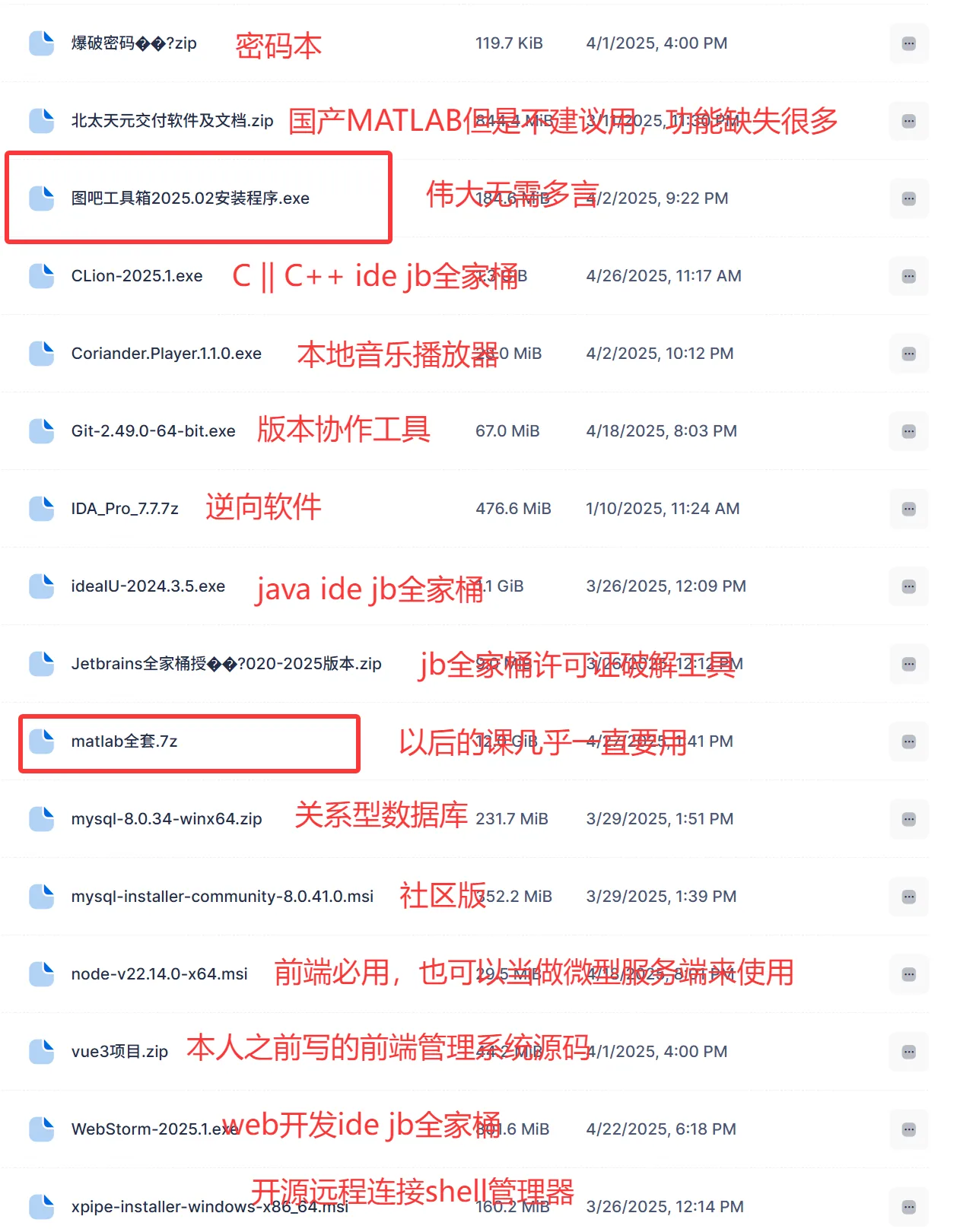
Here I need to explain to you that you can download this with a single click, and because it is transferred over the local network you do not need to pay for the campus network — and also, outside the campus network it will not work, so the speed is as fast as your bandwidth allows. Apart from high-concurrency situations the speed is generally fine. I will keep uploading software to it afterwards.

This is the path
Account: chimingchangyin Password: seven777
Ubuntu's Live Server (server edition) and Desktop (desktop edition) differ significantly in many respects; the following is a detailed comparison of the two:
| Ubuntu Live Server (server edition) | Ubuntu Desktop (desktop edition) | |
|---|---|---|
| User interface | No graphical user interface; it goes straight into a command-line interface, suitable for server management and configuration. | Has a complete graphical user interface (GUI), including a window manager, taskbar, desktop background and so on, suitable for daily use and development. |
| Software installation | Installs relatively few packages by default, focusing mainly on server-related components such as web servers and database servers. Users can install other software as needed. | Installs a large number of desktop applications by default, such as office suites, image processing tools and web browsers, meeting the needs of daily office work, entertainment and study. |
| Hardware requirements | Lower hardware requirements, smaller memory and storage footprint, suitable for running in resource-constrained environments. | Higher hardware requirements, especially memory and storage, in order to support the graphical interface and the many applications running on it. |
| Use cases | Mainly used in server environments, such as web servers, database servers, FTP servers and so on. Also suitable for scenarios requiring remote management and configuration. | Suitable for individual users and developers, providing a user-friendly graphical interface and rich desktop application support. Suitable for scenarios such as daily office work, development, study and multimedia entertainment. |
| Updates and maintenance | Updates and maintenance are mainly carried out via the command line and require a certain technical background. | Provides graphical update and maintenance tools; operations are relatively simple. |
| Network configuration | Network configuration is usually done via the command line, supporting DHCP or static IP configuration. | Provides graphical network configuration tools, making it convenient for users to set up their network. |
| Security | Since there is no graphical interface, the risk of being attacked is reduced. But the server's own security still needs to be guaranteed by the user through configuration and management. | The graphical interface may add a certain security risk, but Ubuntu Desktop also provides various security mechanisms to protect user data. |
Installing Virtual Machine Software
To be honest, I do not recommend using any virtual machine other than VMware to install. VMware is fairly mature, causes fewer problems, and there are plenty of solutions when issues do come up. If you feel it is eating memory and lagging, then just add a memory stick to the computer; under normal circumstances 16 GB is more than enough

Here I will use 16 to demonstrate; I will just upload one, the resource comes from 52pojie

The following are license activation keys for v16.x; pick any one of them
- ZF3R0-FHED2-M80TY-8QYGC-NPKYF
- YF390-0HF8P-M81RQ-2DXQE-M2UT6
- ZF71R-DMX85-08DQY-8YMNC-PPHV8
- 110L3-9135J-M807A-08ARK-84V7L
- FF31K-AHZD1-H8ETZ-8WWEZ-WUUVA
Next let us start the installation
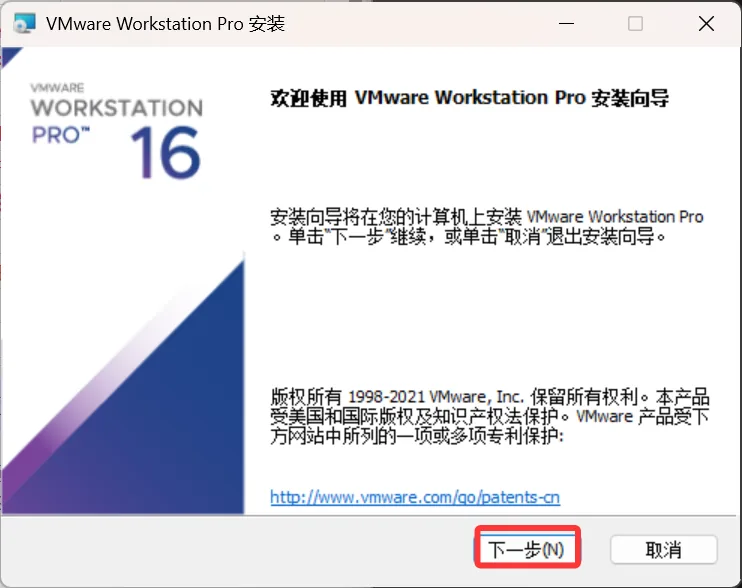
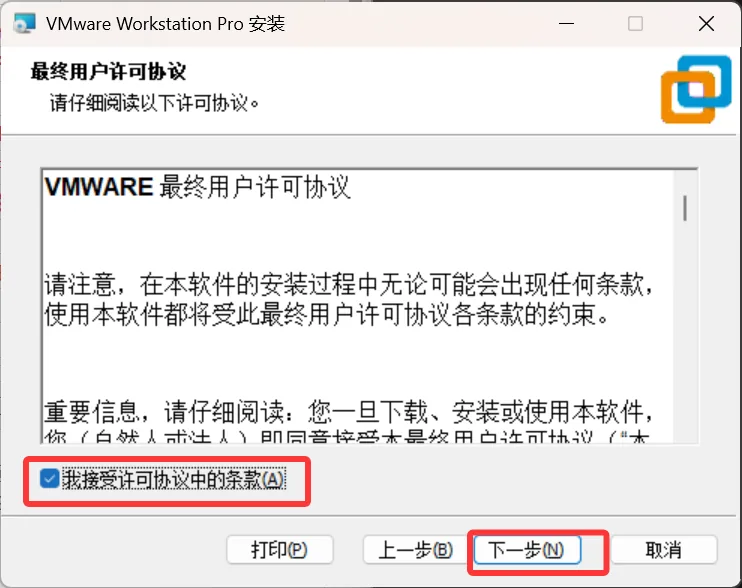
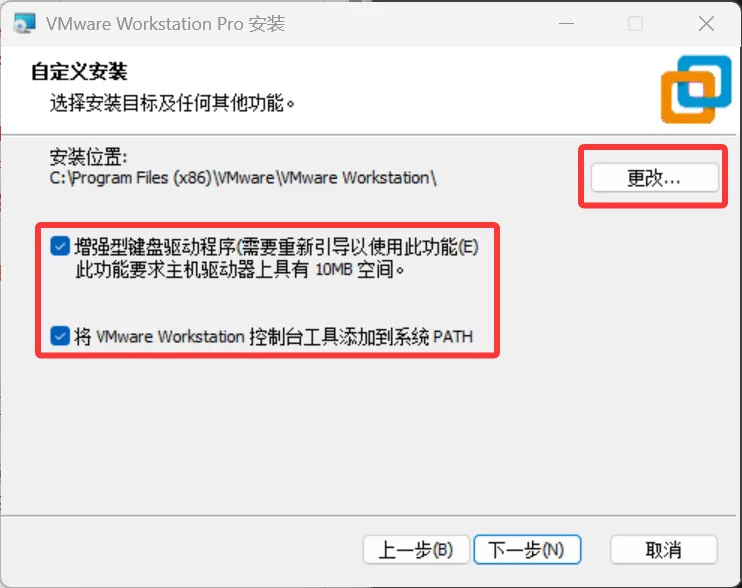
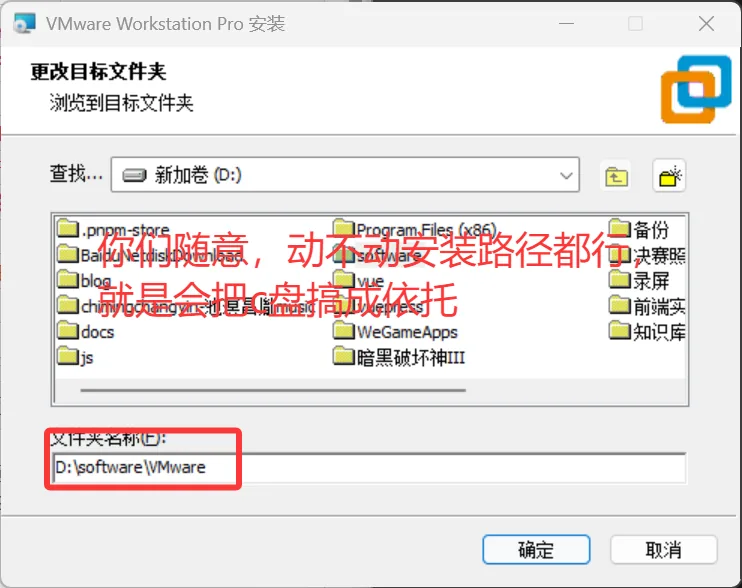
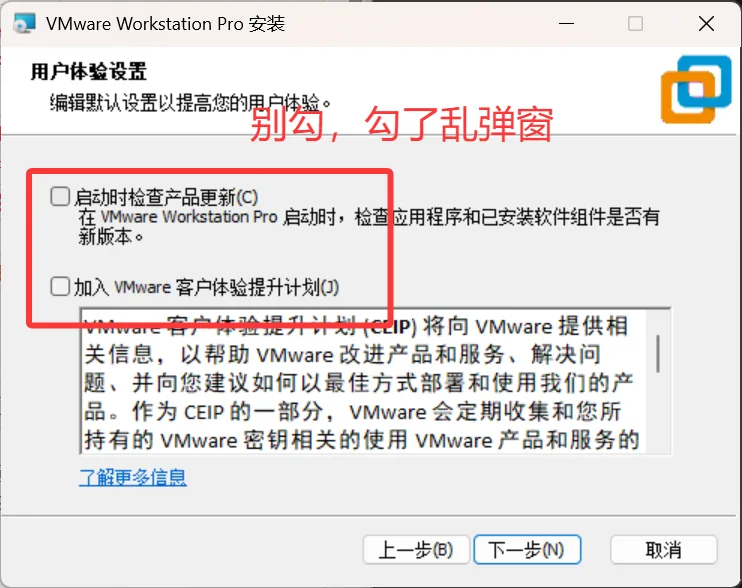
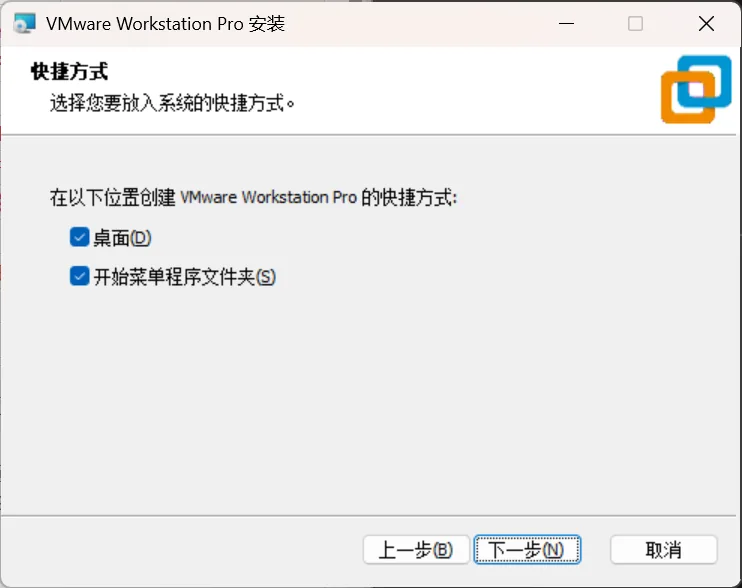
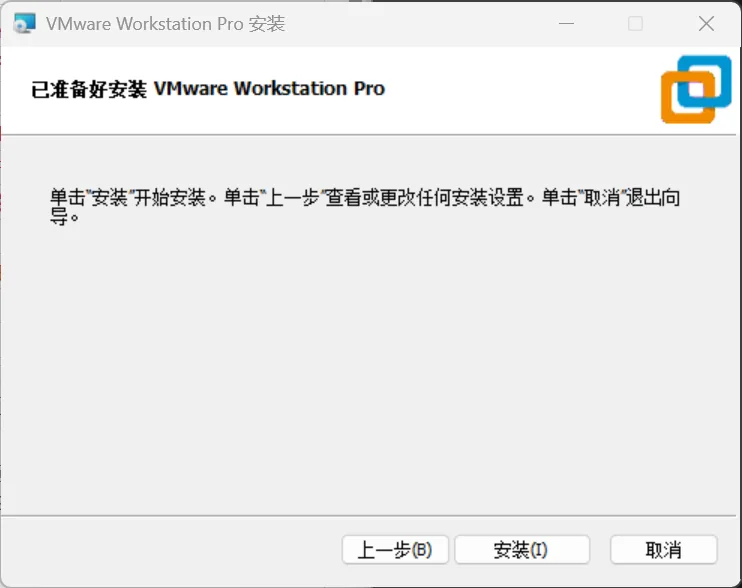
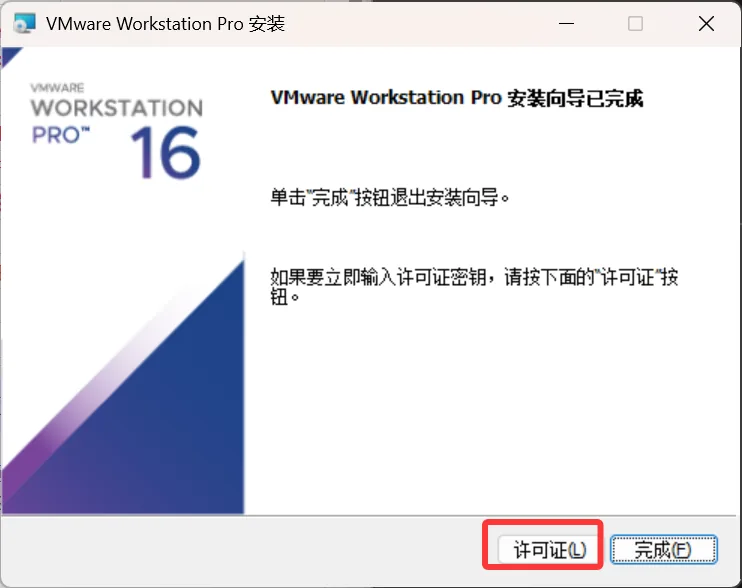
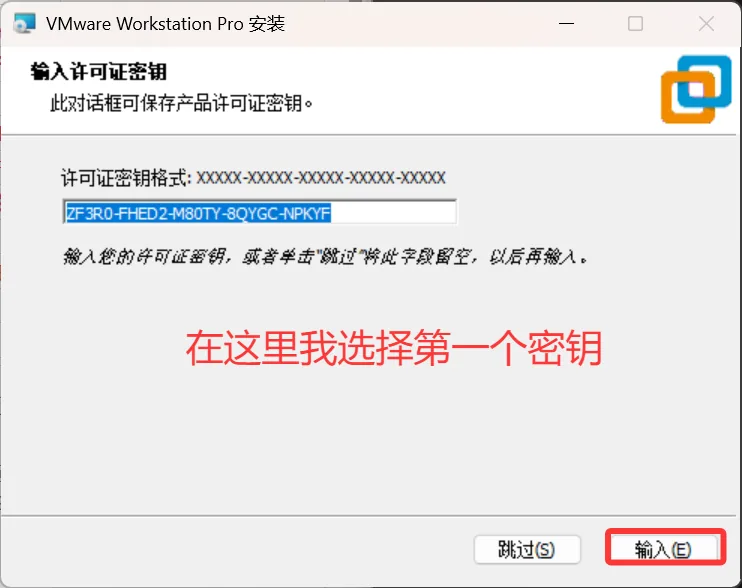
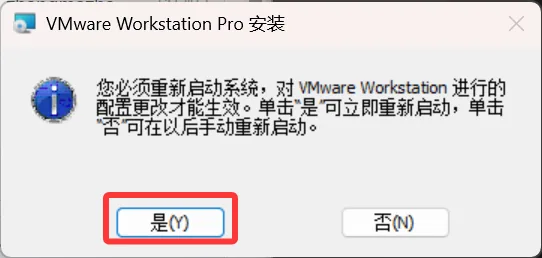
Once the reboot is done, you are all set
Installing Ubuntu in a Virtual Machine
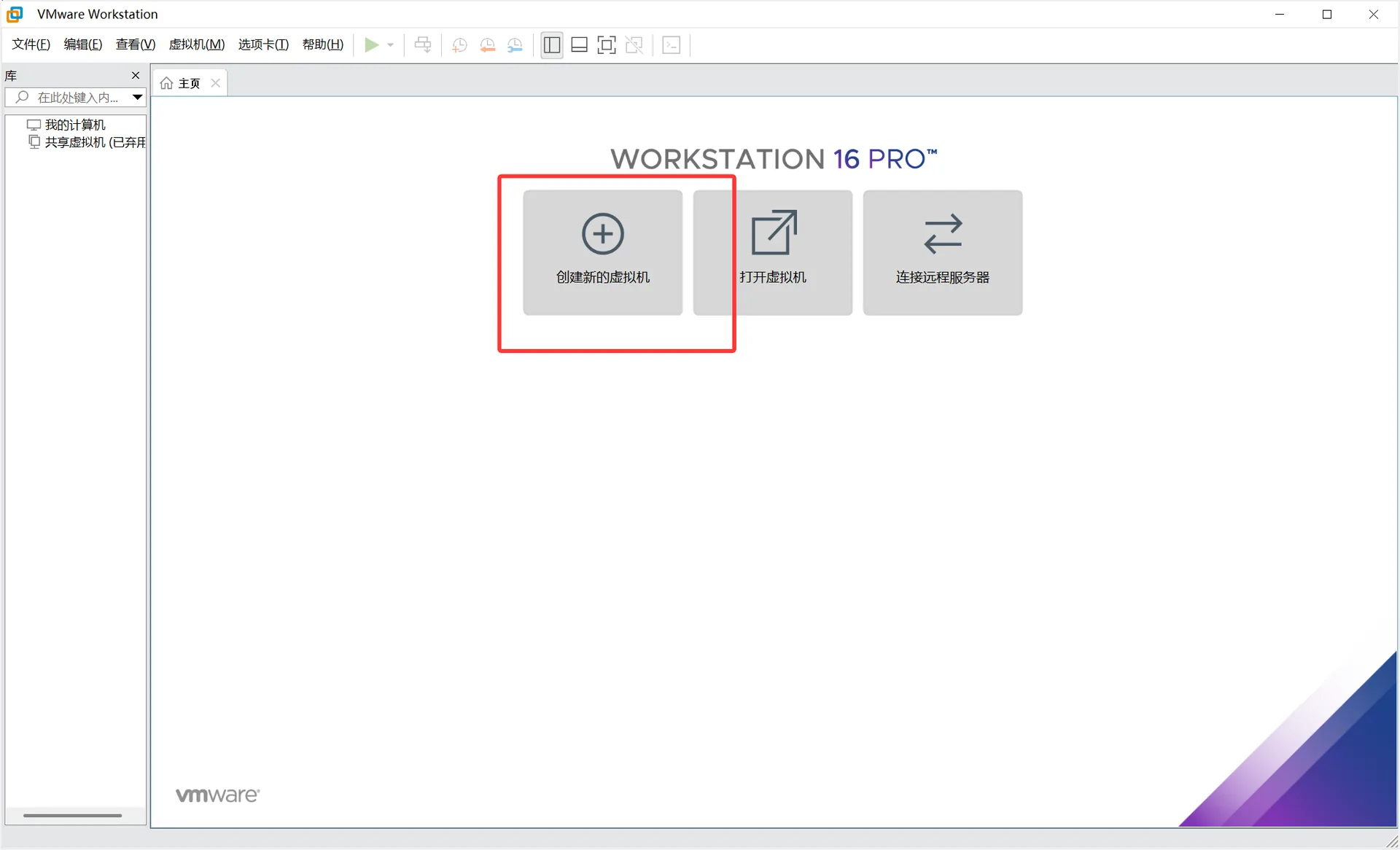
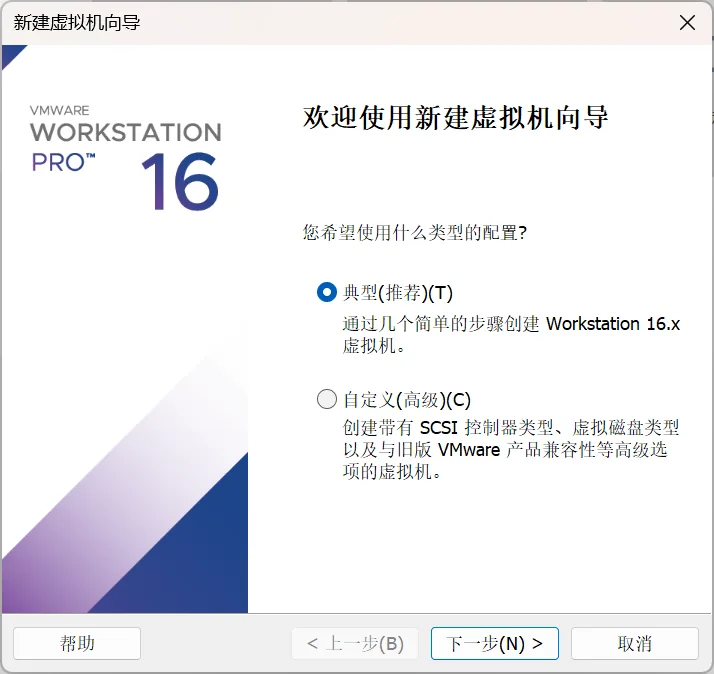
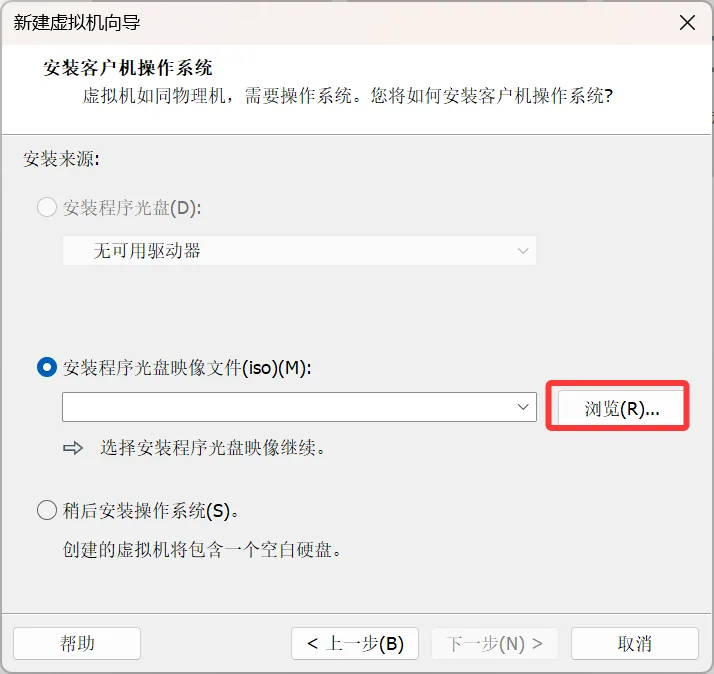
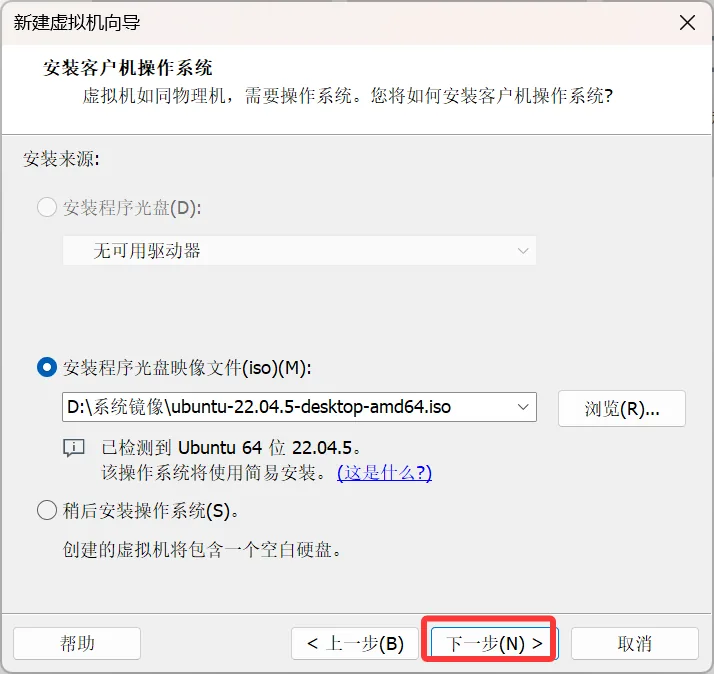
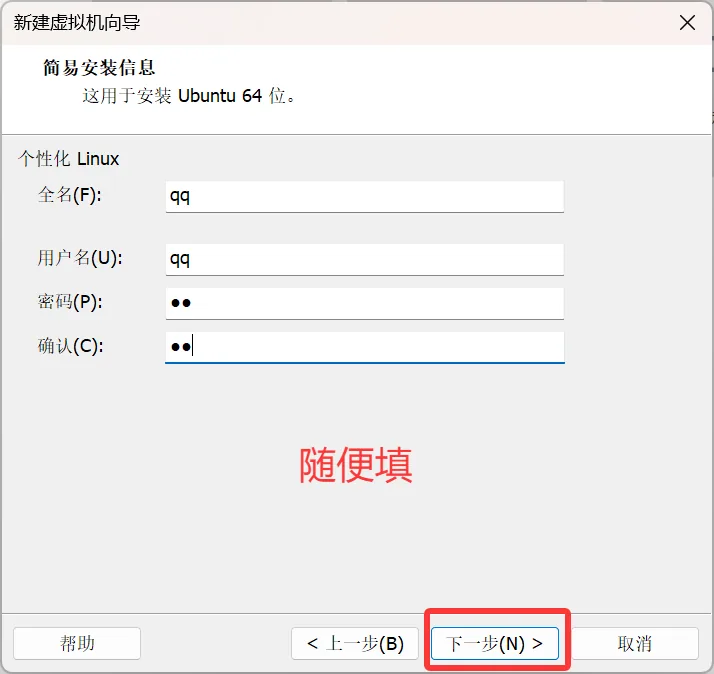
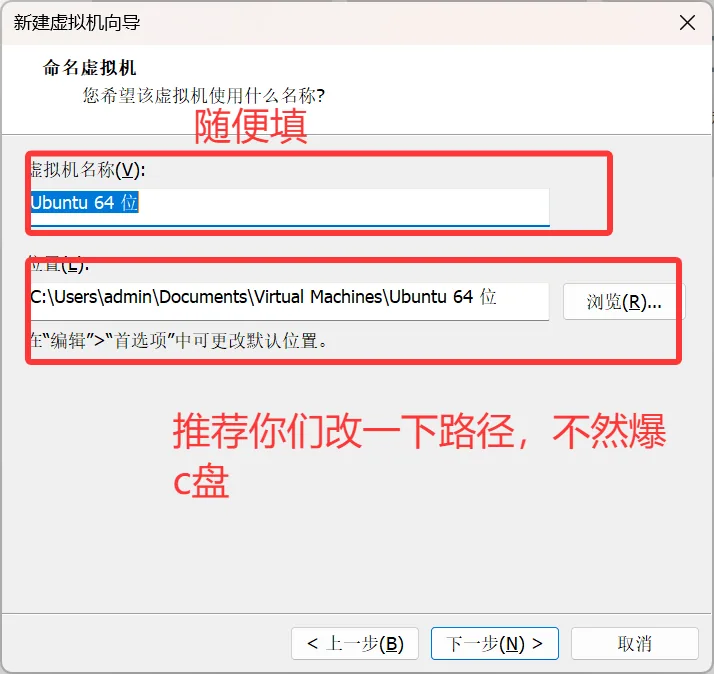
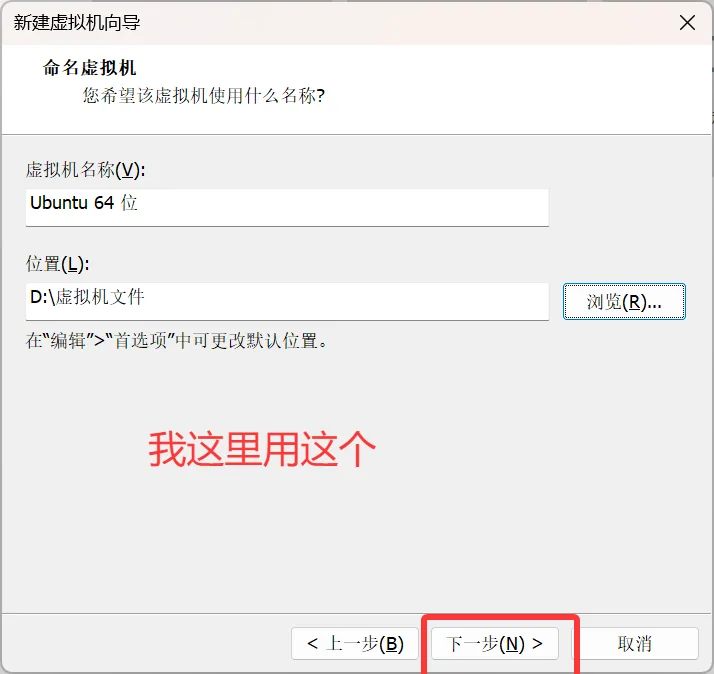
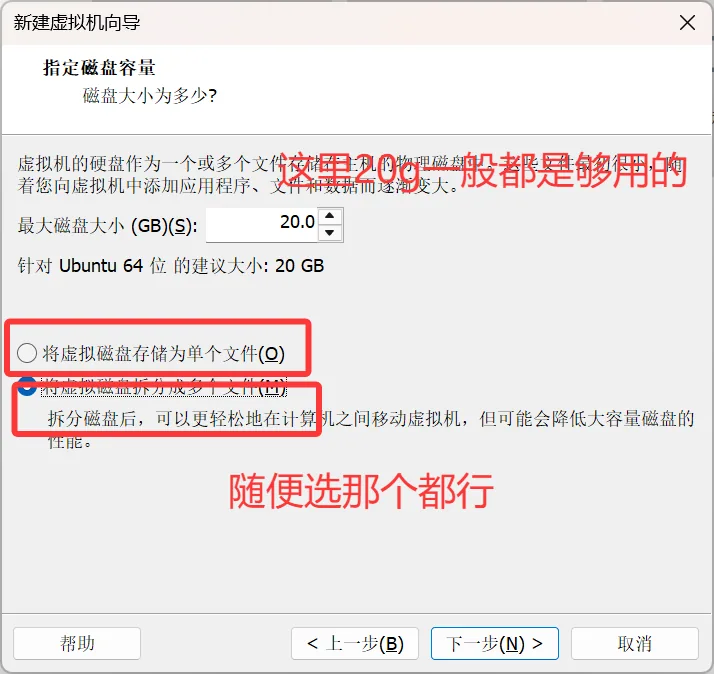
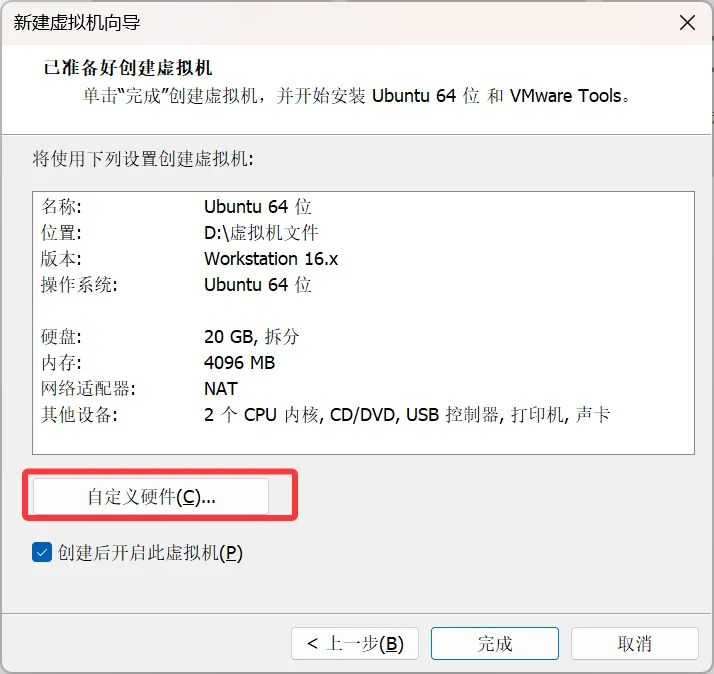
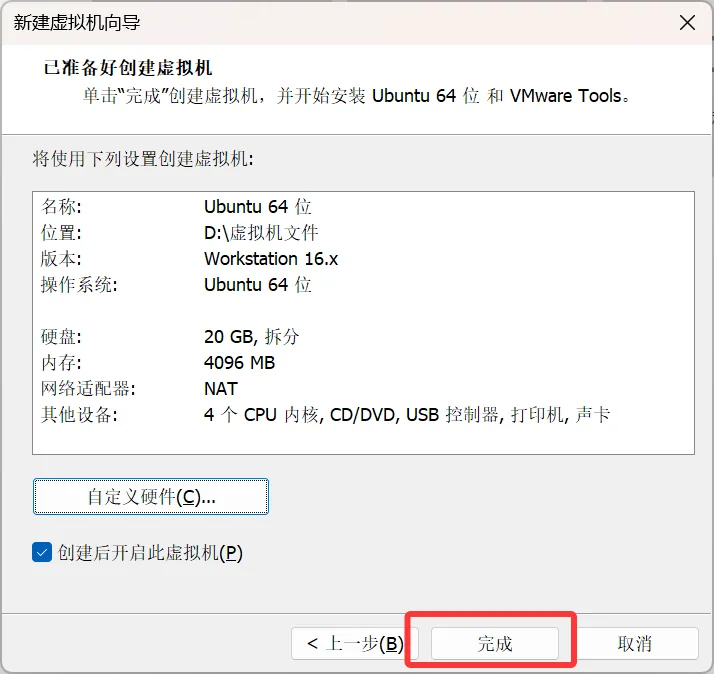
Then the system installation formally begins
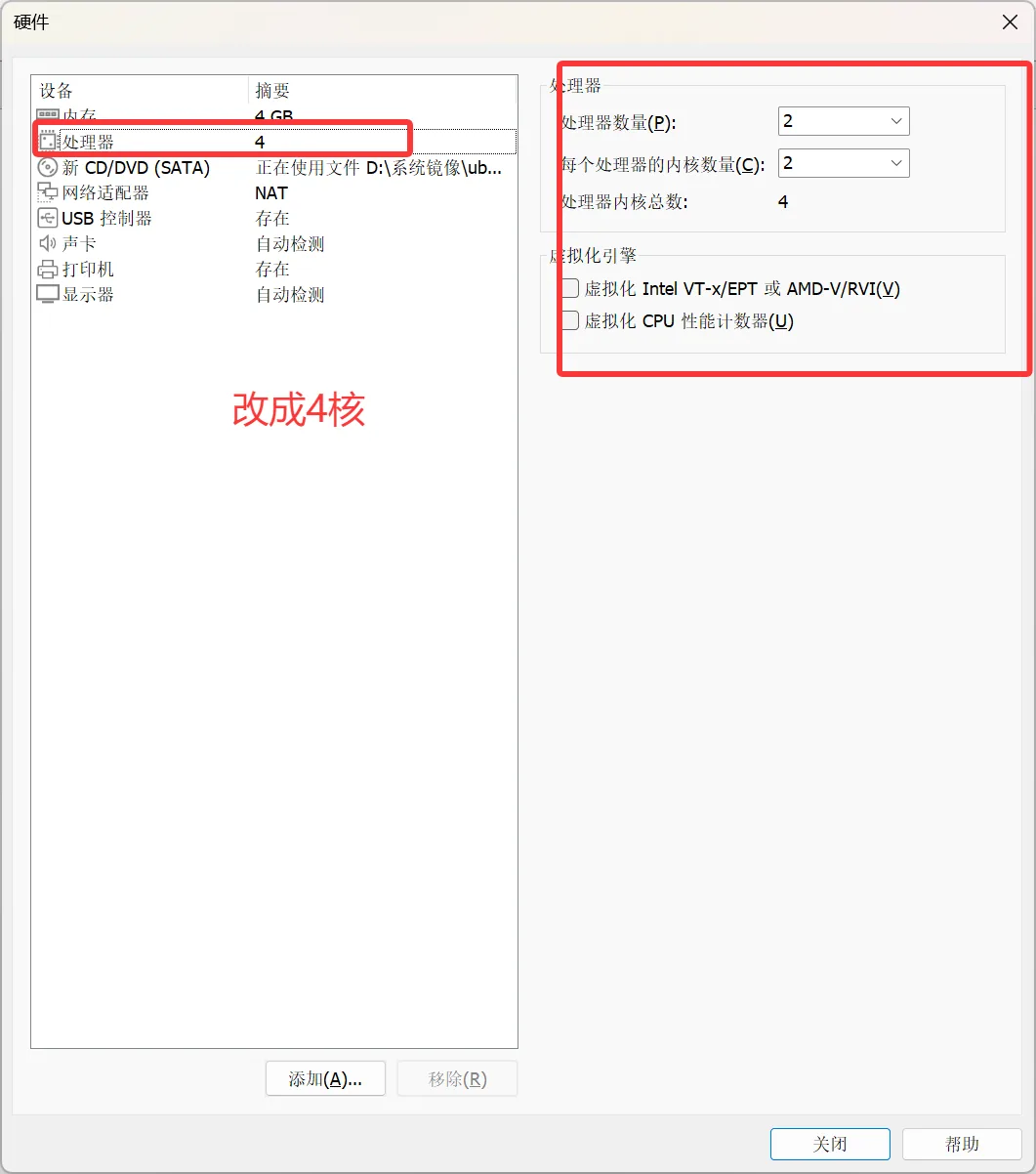
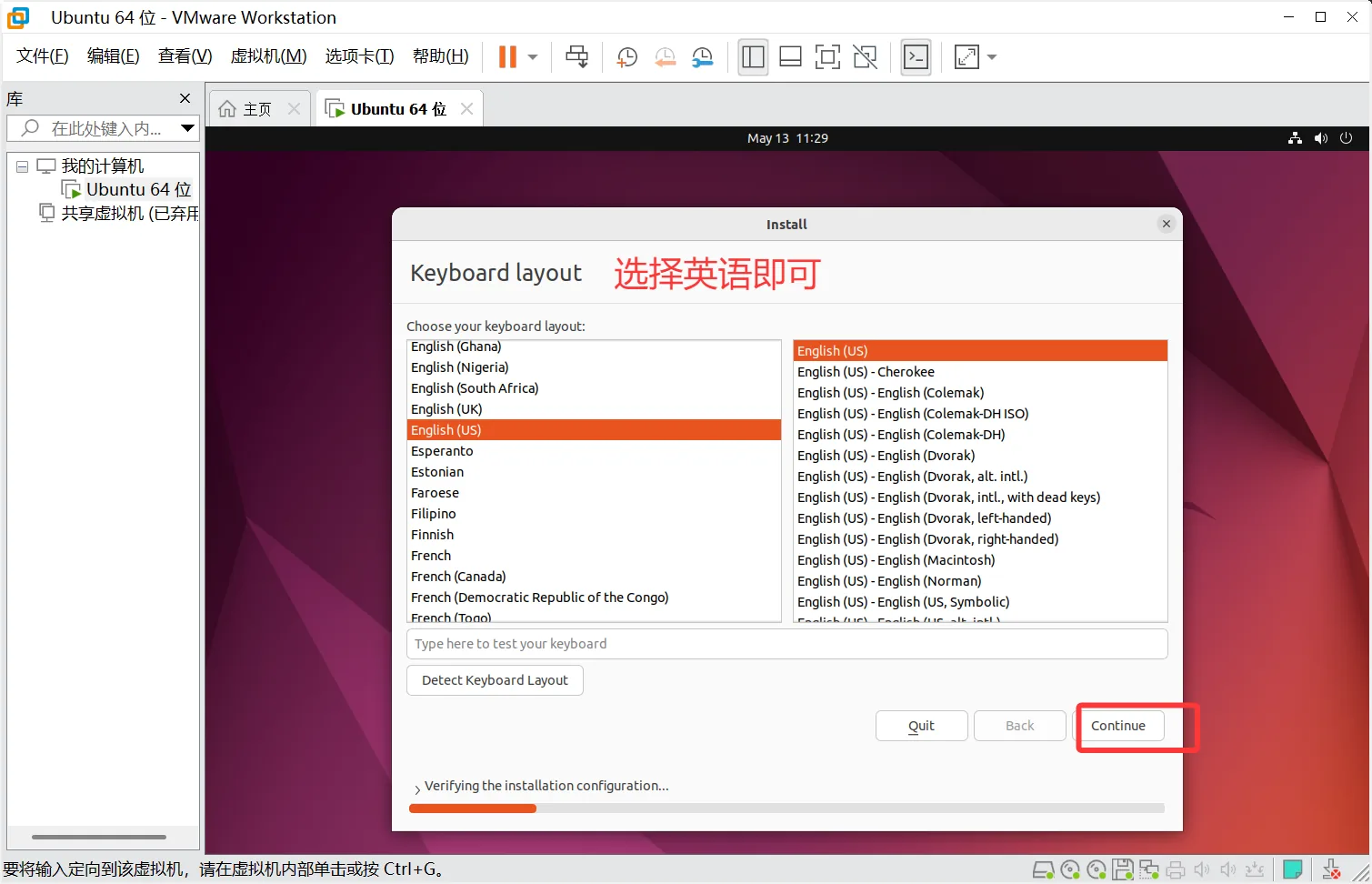
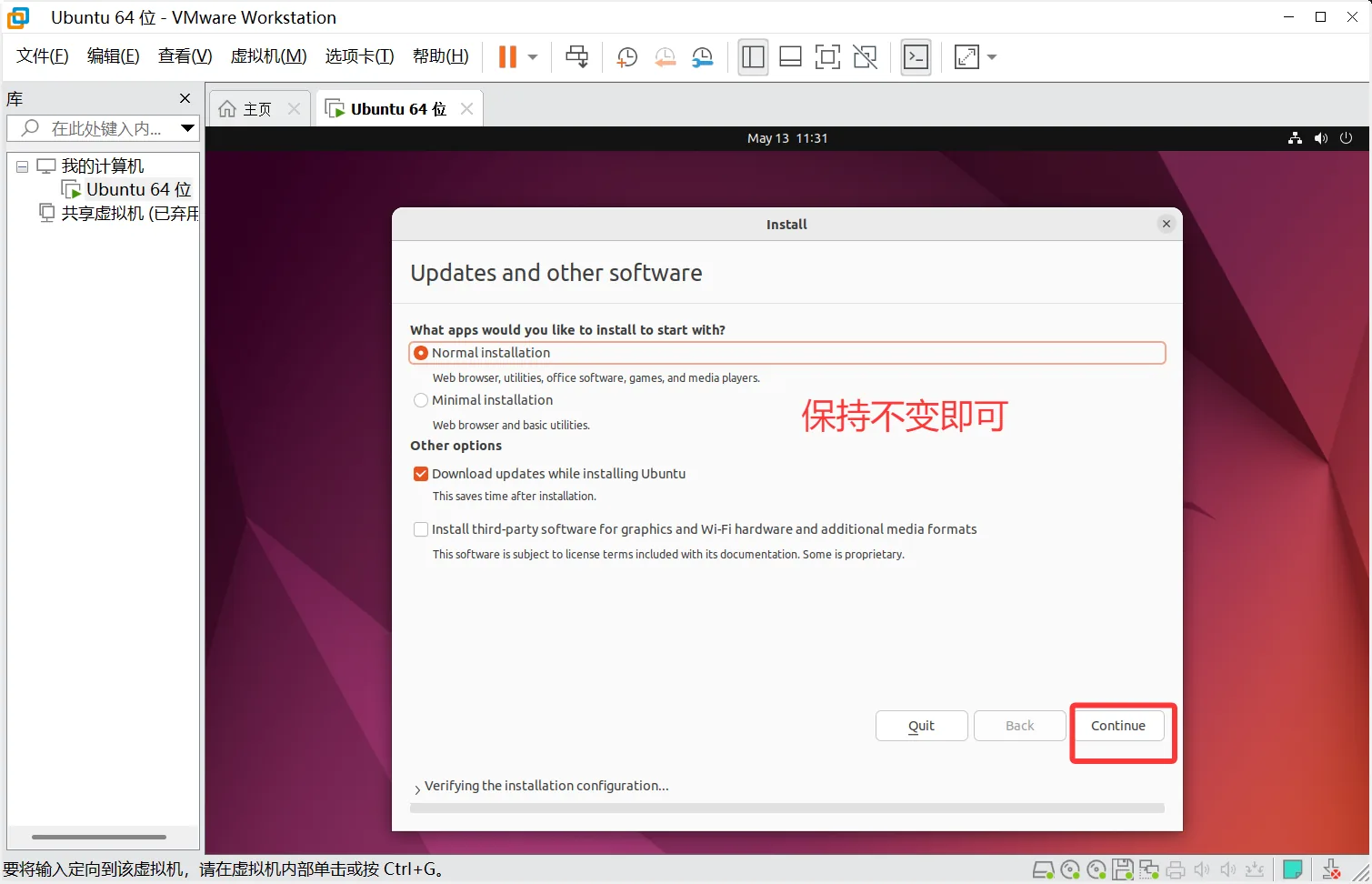
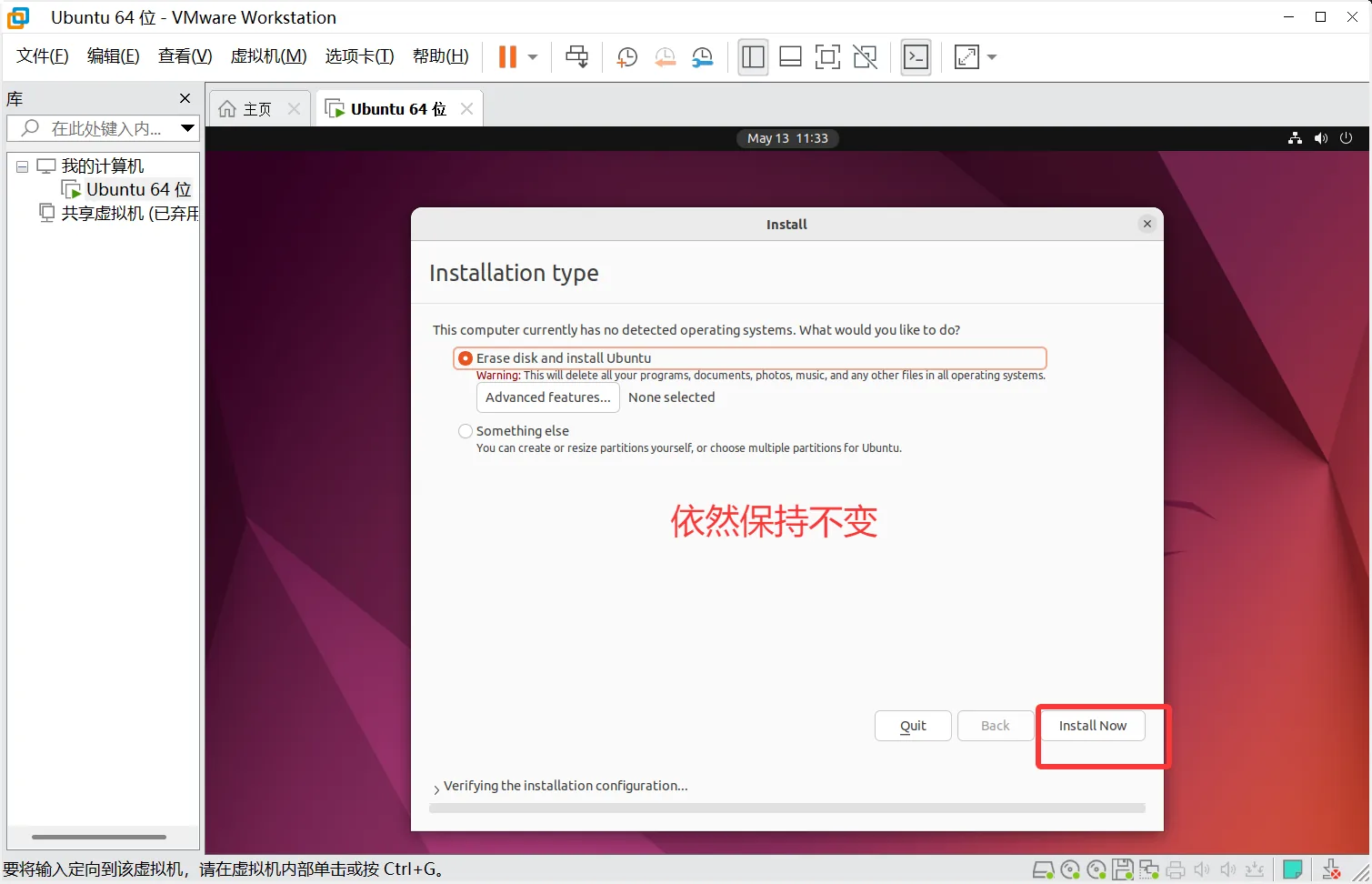
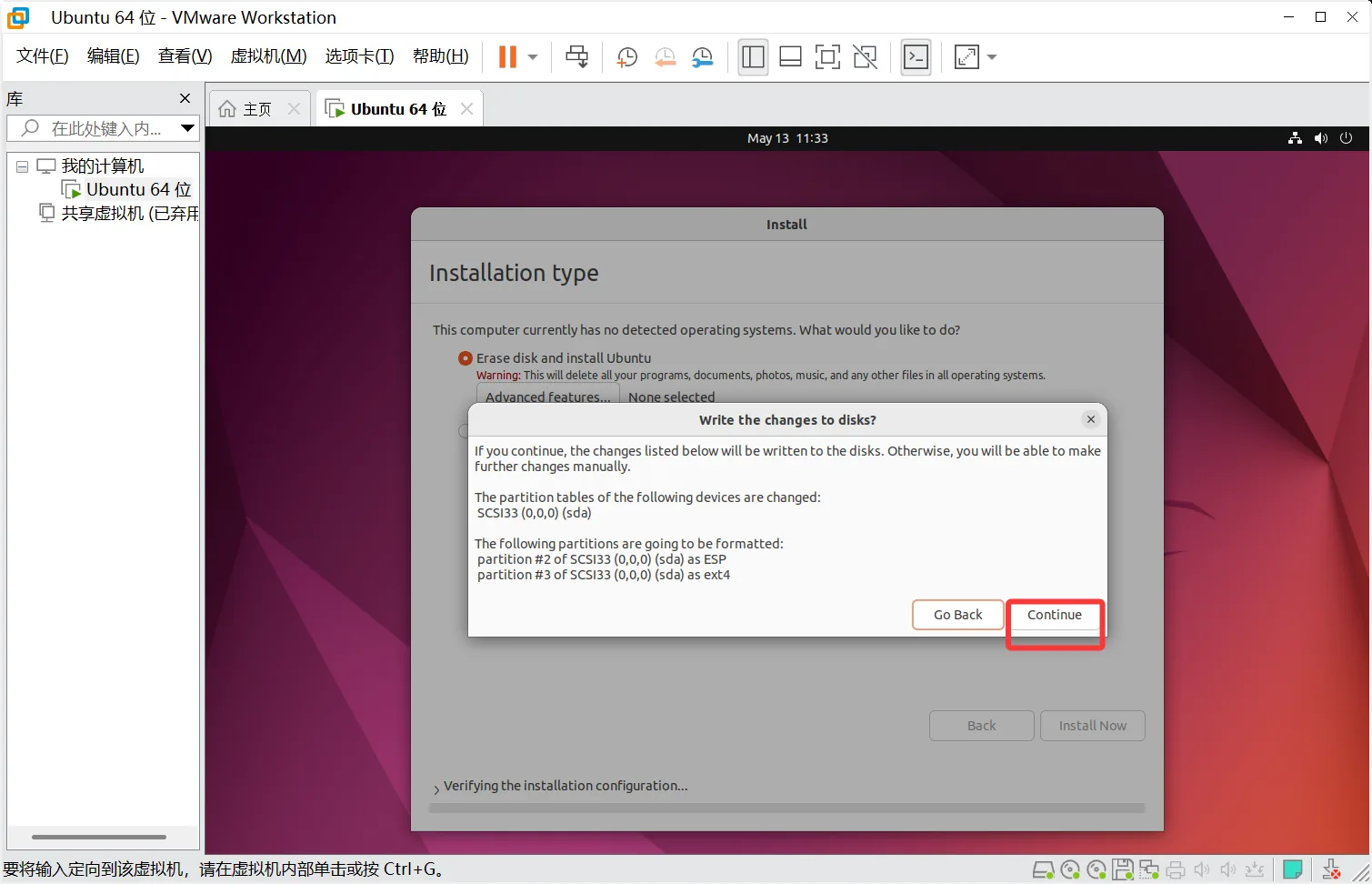
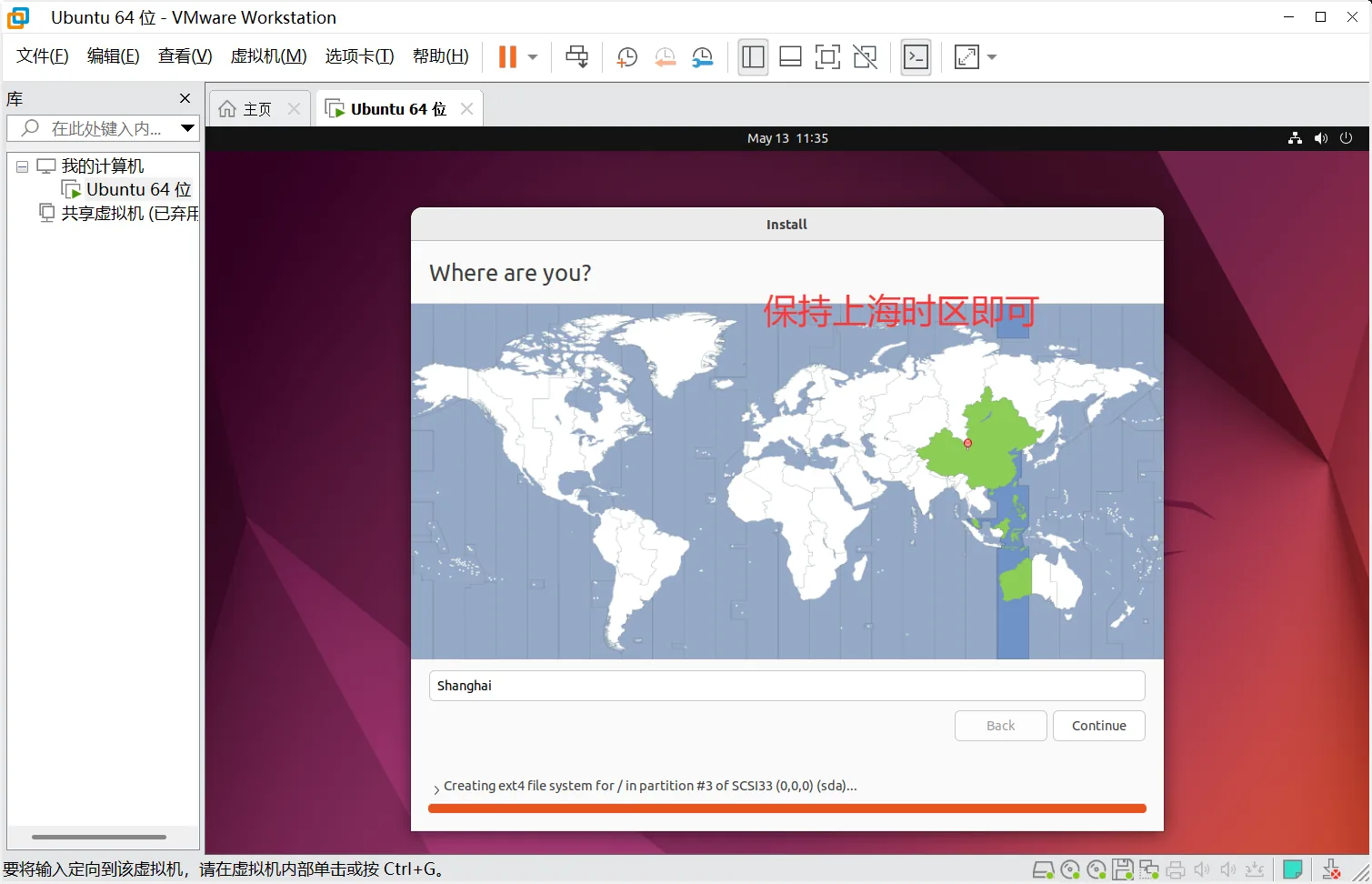
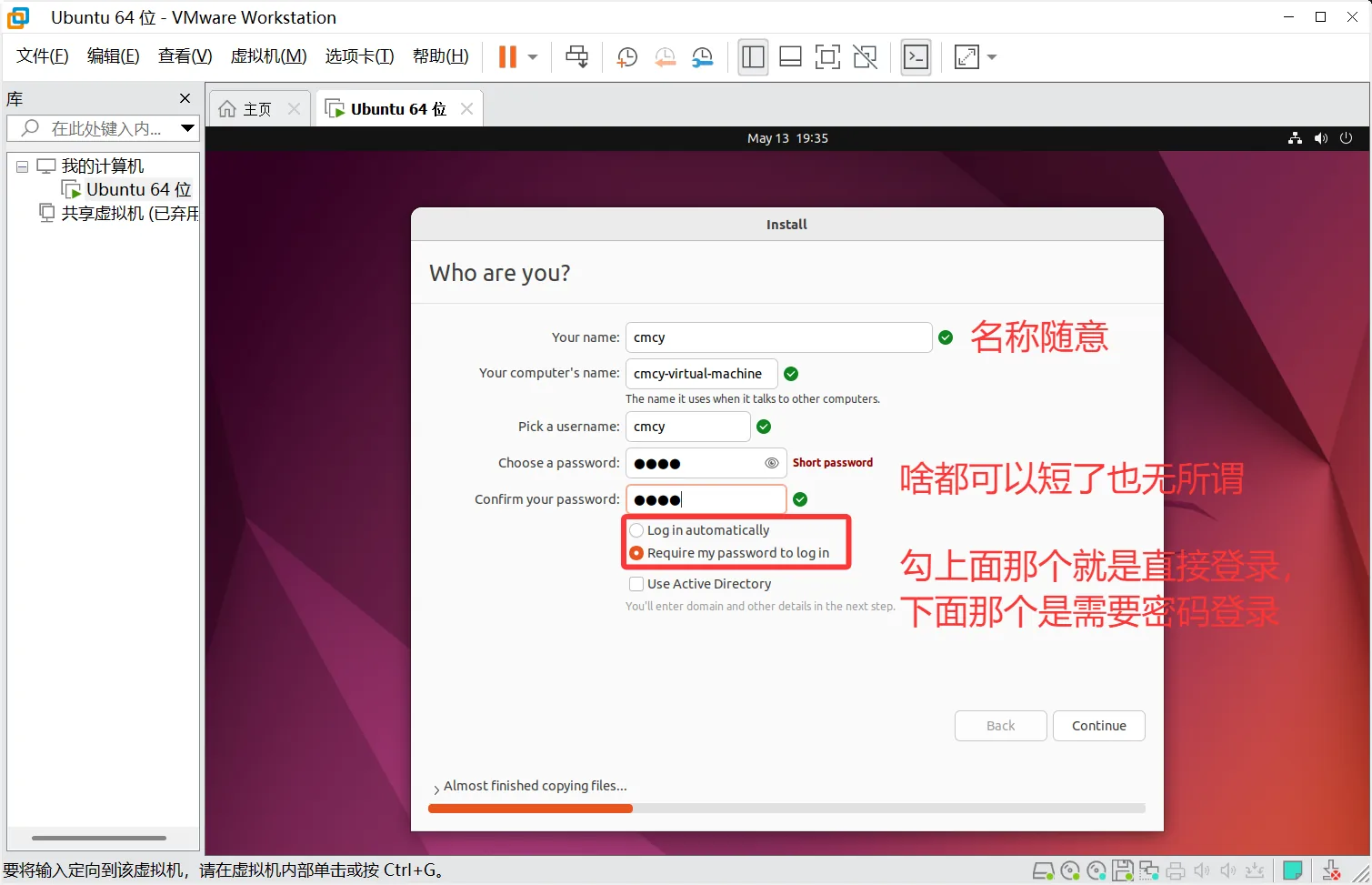
Then wait for the installation
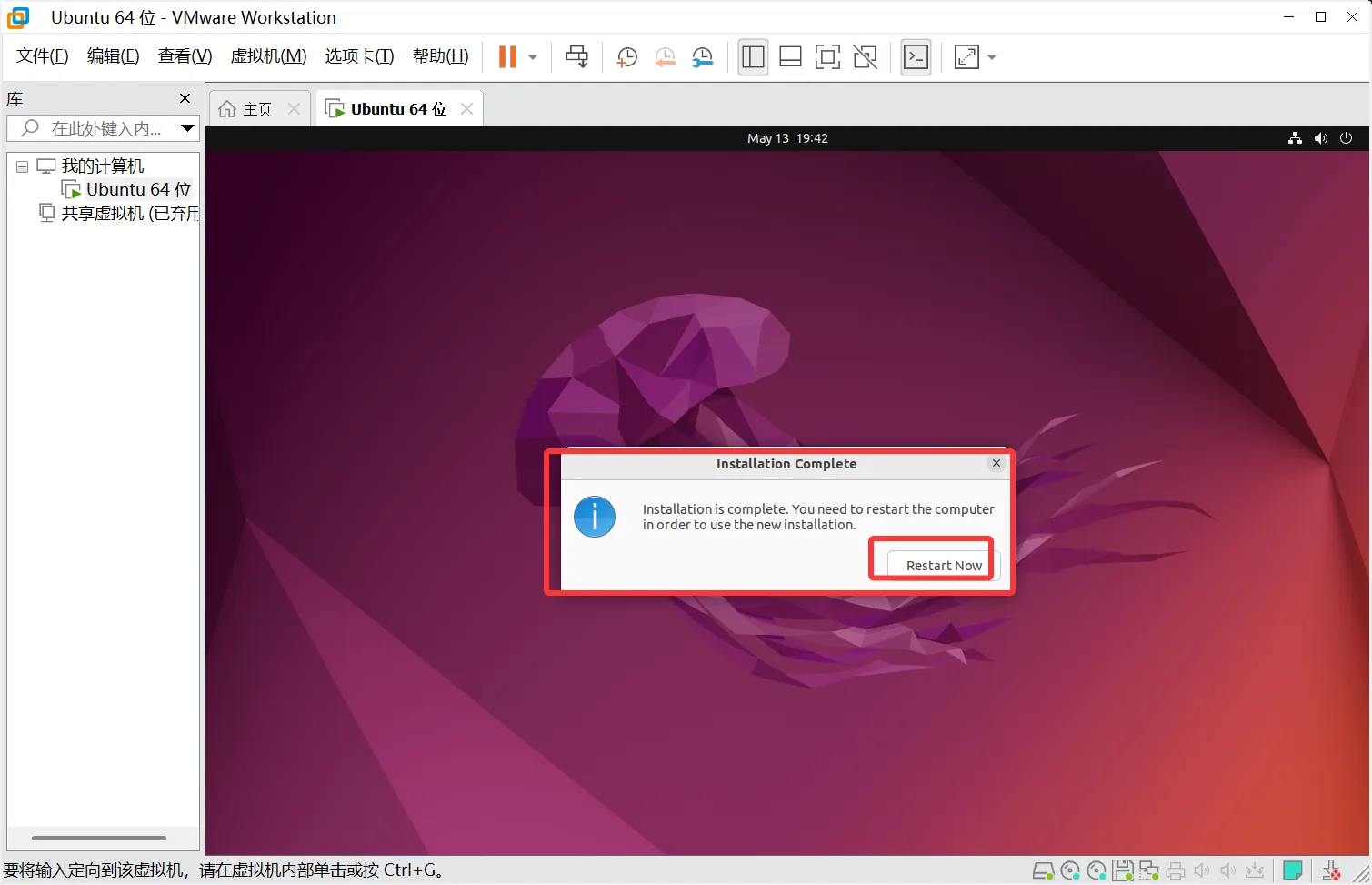
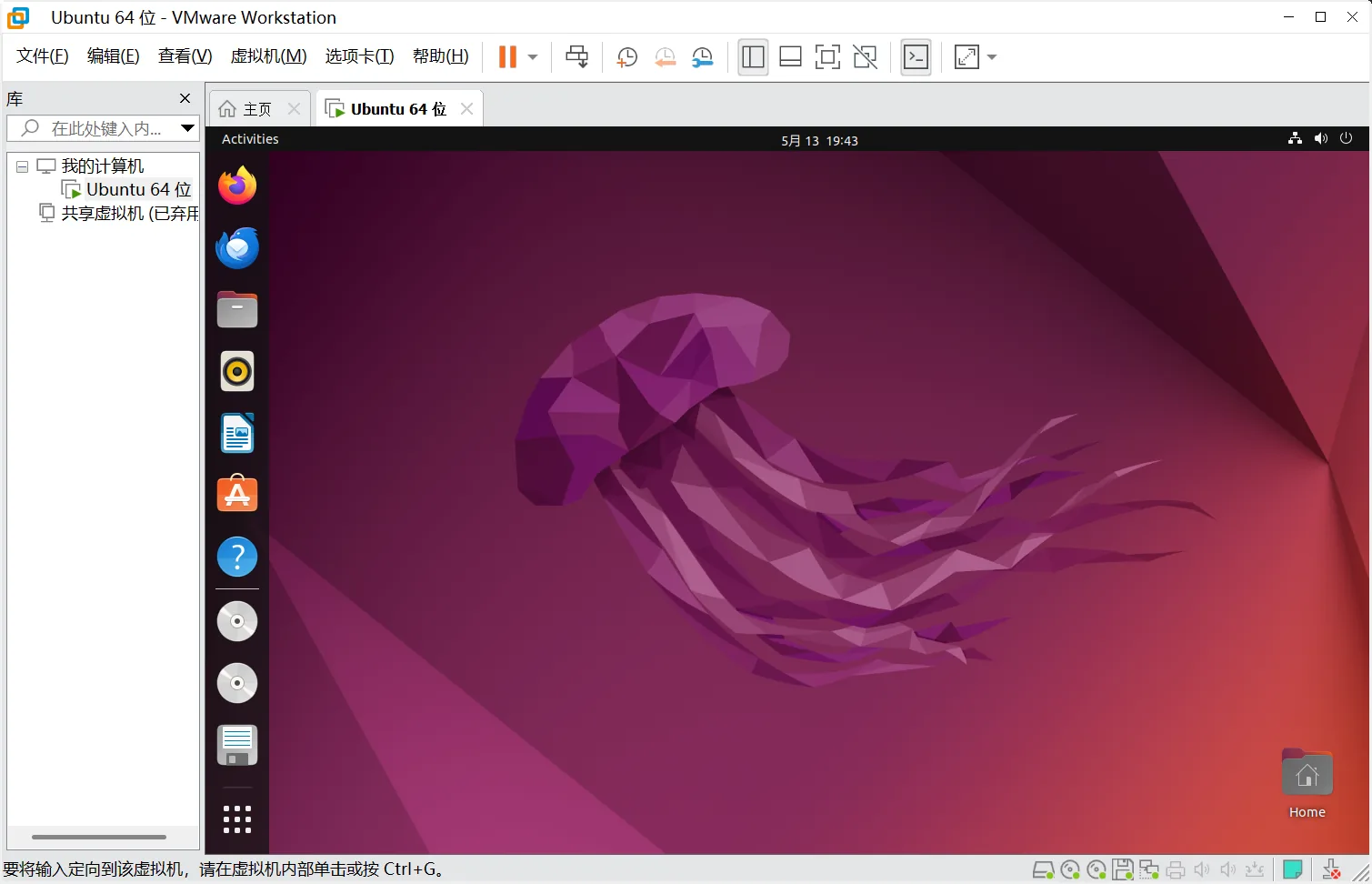
In the end you successfully get into the system, and then: do not update anything at all that tells you to update!!!
Installing on a Physical Machine
Making the Installation Drive
- First prepare a USB drive whose read and write speed is not pathetic
- Just download Tuba Toolbox; it can satisfy all your PC-building needs
- Open Tuba Toolbox — Other Tools — ventoy2disk
- Plug the USB drive into the computer and use ventoy2disk to make it into an installation drive
- Put the ISO image file onto the USB drive
Entering BIOS or UEFI (the following explains BIOS)
- At boot, different motherboard models need different keys to enter the BIOS. That old X79 dual-socket beater board of mine used the del key (just mash it) to enter the BIOS; this one uses f2
- Once inside the BIOS you use Boot Manager to choose which system to boot first; here we put the USB drive in first place
- Enter the USB drive and choose the operating system you want to install
As for the installation process, it is the same as the virtual machine flow above; there is a GUI either way so it gets installed however you do it. But installing on a physical machine requires solving the timer problem and the GRUB bootloader, among other things. I will not go into that here